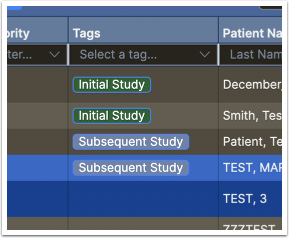
What you will accomplish: You will create, edit, and use study tags as an admin or end-user.
Admin: Create a Study Tag
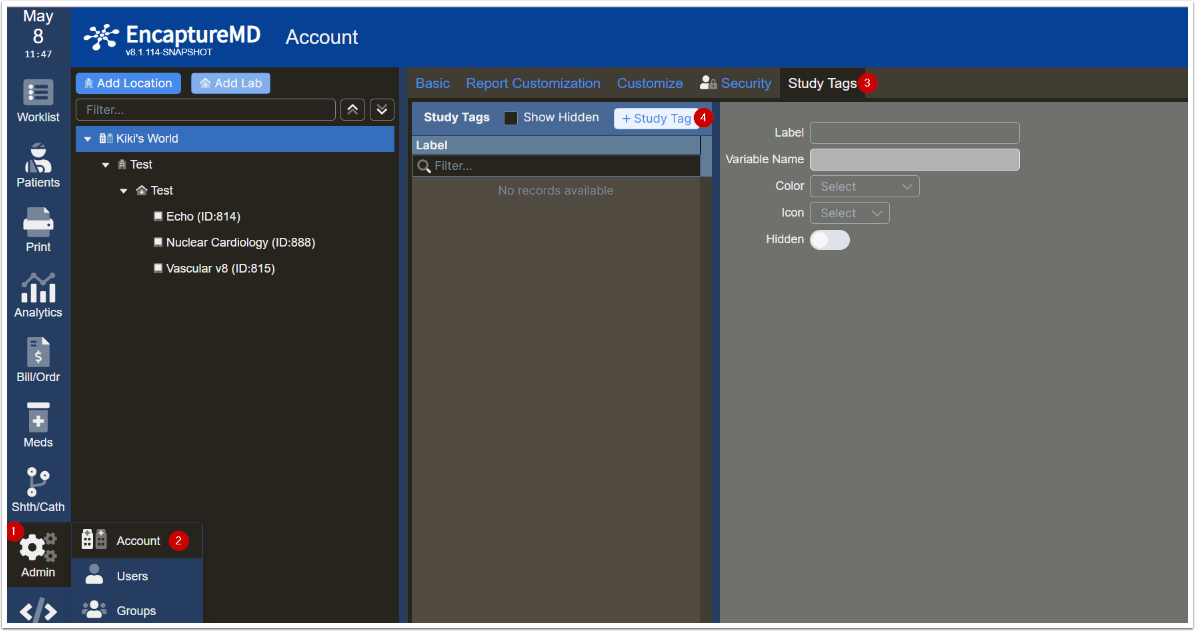
- Click the Admin tab.
- Click Account.
- Select the Study Tag tab.
Click +Study Tag.
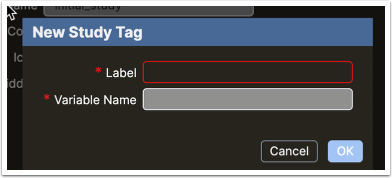
Enter a label for the tag in the pop-up.
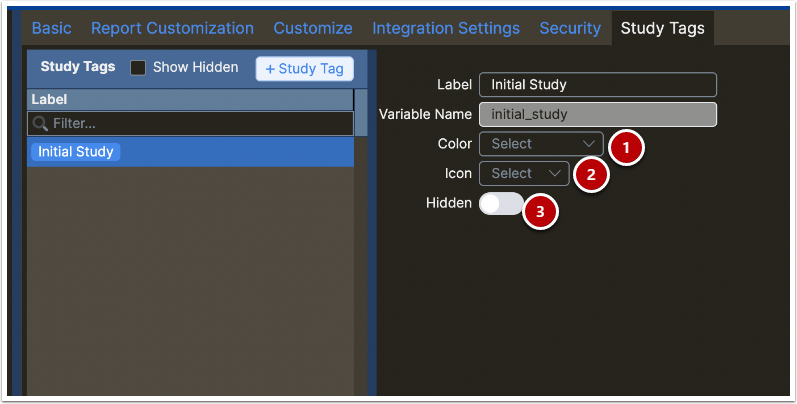
- Assign a color (optional).
- Assign an icon (optional).
Hide tags if needed. Hidden tags:
- Cannot be chosen in new studies.
- Still appear if previously selected.
- Can be shown again by checking Show Hidden and unselecting Hidden.
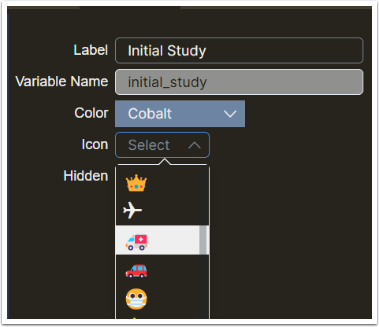
Admin: Edit a Study Tag
- Click an existing study tag.
- Edit its Label, Color, or Icon.
Note: There is no right-click context menu for study tags.
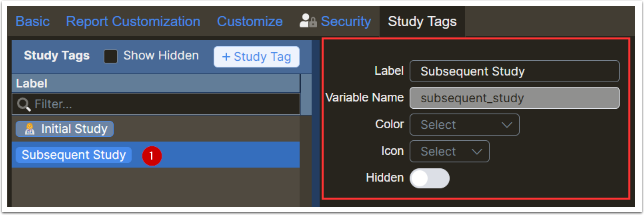
End-user: Add or Remove Study Tags
Click in the Study Tags section of an open study. A dropdown appears.
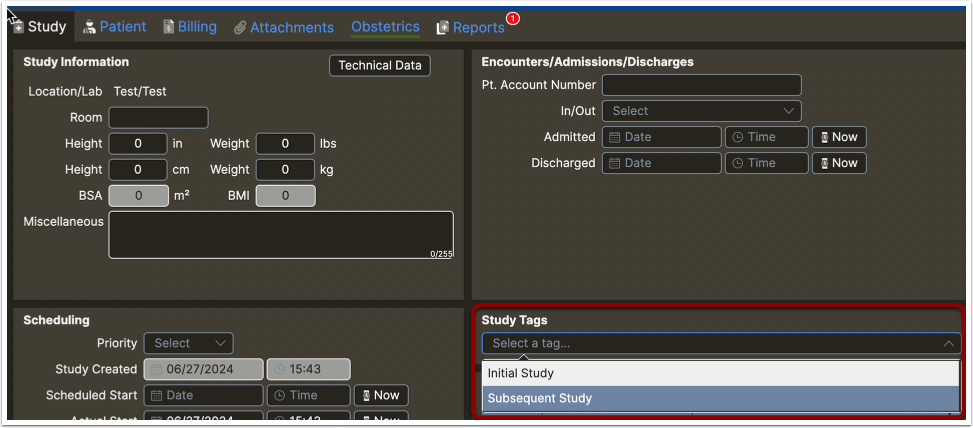
- Click entries to add tags.
To remove a tag, click the (x) icon on the tag.

End-user: Show Study Tags on Work List
If the Tag column is missing, click the ... icon on the far right of the work list.
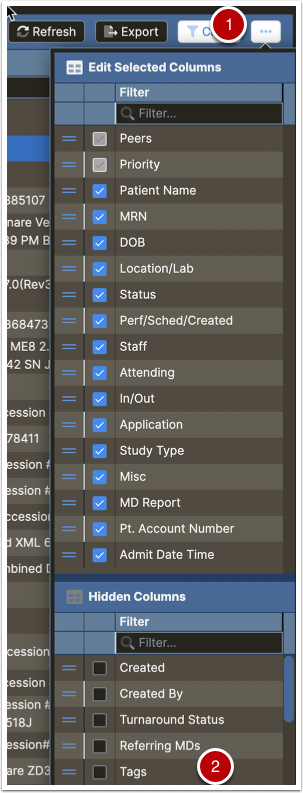
- Check Tags to add the column. Drag to reposition as needed.
The Tags column will now be visible.