Key Concepts of the Report Tab
The Report tab is designed to streamline the process of creating, editing, and validating clinical reports. It brings together information from different sources and provides tools for comparison, editing, and finalization.
- Centralizes report creation and review.
- Supports comparison with prior studies and drafts.
- Includes validation to ensure completeness and accuracy.
General Layout and Structure
The Report tab is organized into several main areas, each serving a specific function:
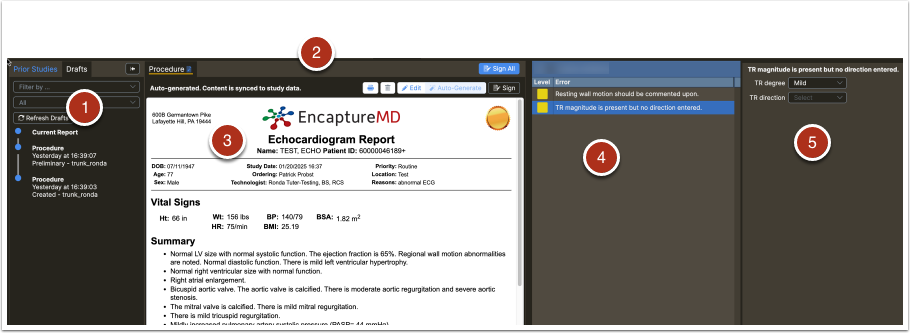
- The left panel (1) lists prior studies and drafts for easy access and comparison.
- The header (2) provides options such as printing, editing, and signing reports.
- The main area displays the report (3), which updates automatically when in Auto Generate mode.
- The right panel shows validation results (4), highlighting red required and yellow warning validations.
- Clicking on a specific validation (5) loads the field(s) necessary to resolve the validation.
Typical sections of a clinical report include:
- Header: Customizable, often varies by location.
- Report Title: Identifies the report type.
- Demographics: Patient and study identification details.
- Conclusion/Body: Contains findings, measurements, and narrative generated from imported data and user input.
- Signature Line: Displays the interpreting physician's signature.
- Attachments: Includes images or files relevant to the study.
- The layout supports efficient navigation and review.
- Each section of the report serves a distinct purpose.
Comparing Prior Studies
The Report tab allows users to compare the current report with previous studies or drafts. This comparison helps ensure consistency and track changes over time.
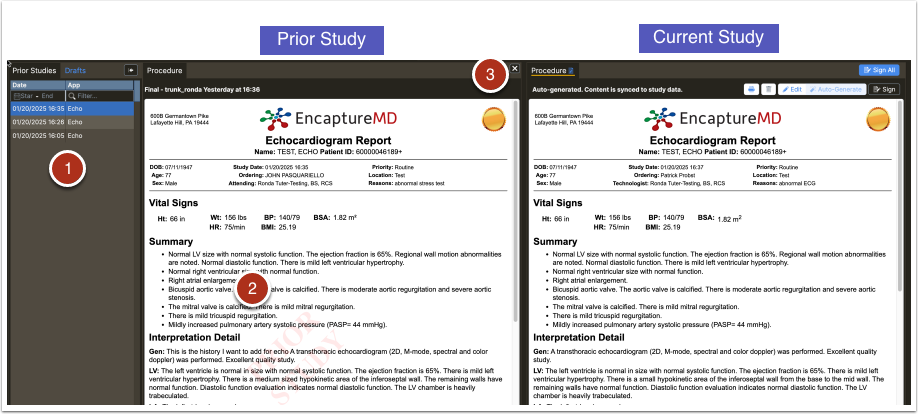
- Prior studies and drafts are accessible from the left panel (1).
- Comparisons can be made side-by-side for detailed review by clicking the desired study from the left panel.
- Note the PRIOR STUDY watermark (2).
- User may copy and paste data from a prior report on the left to the current draft on the right if in "Edit" mode.
- Click the X in the upper right corner (3) to close the prior report.
Draft Comparison
- Drafts are automatically created whenever a report is modified and saved.
- Similar to Prior Studies, select a draft from the left panel (1) for comparison.
- The draft loads to the left of the current version with a DRAFT watermark (2).
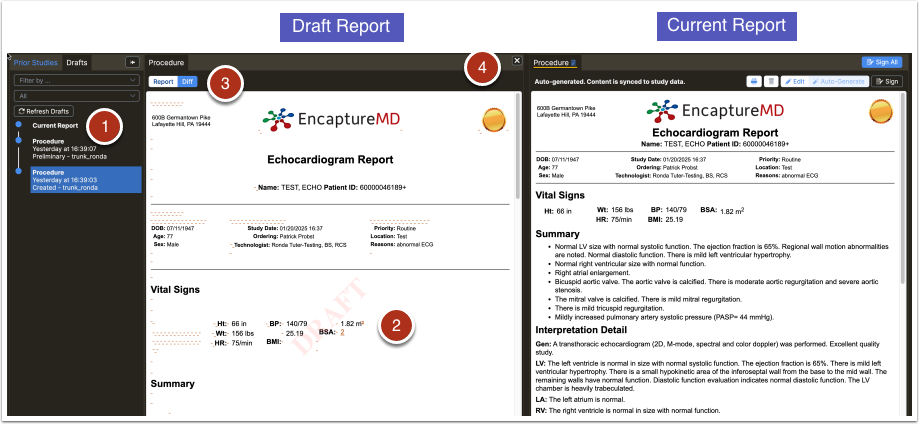
- Draft comparison includes two modes (3) - "Diff" mode to highlight differences (default) and "Report" to show the report as currently saved.
- Drafts can be reviewed and content copied back into the current report if needed.
- Click the X in the upper right corner (4) to close the draft report.
Edit Mode and Auto Generate Mode
The Report tab supports two primary modes for report creation:
- Auto Generate Mode (1): The report updates automatically as study fields are changed.
- Edit Mode (3): Allows manual editing of the report, similar to a word processor. Advanced options include editing HTML (<>) or clearing formatting (Tx).
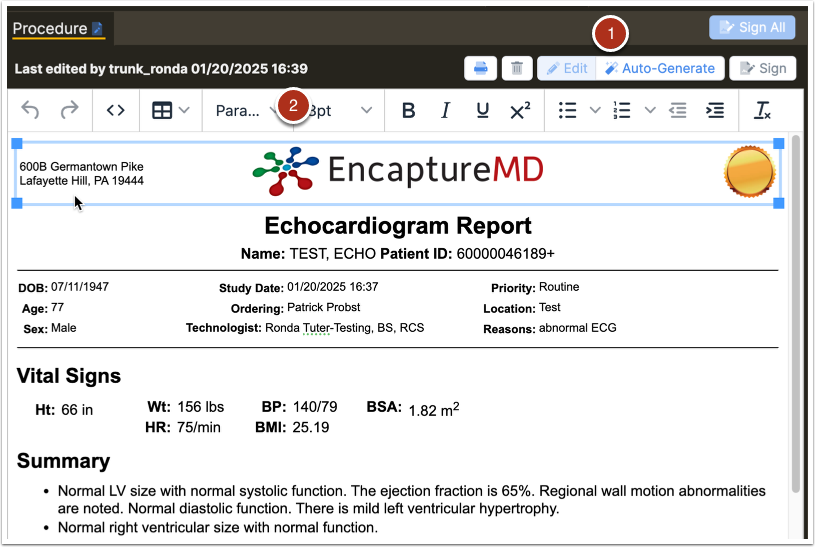
- Switching between modes affects how changes are saved and applied.
- Edits made in Edit mode are saved as drafts and can be restored if needed.
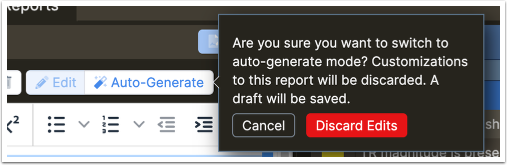
- Auto Generate mode is ideal for standard workflows; Edit mode is used for custom changes after all field level selections have been made.
Validation and Report Finalization
Validation ensures that reports are complete and accurate before they are finalized. The system uses color-coded indicators to highlight issues:
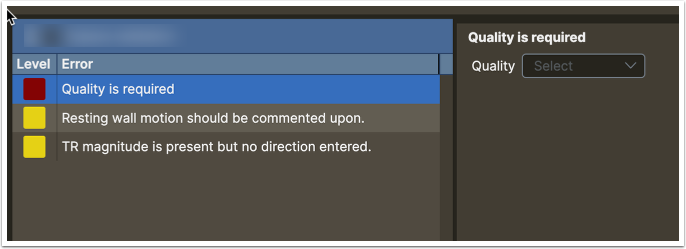
- Red squares indicate required fields that must be addressed before signing.
- Yellow squares indicate warnings that should be reviewed.
- Validation is continuously updated as changes are made.
Once all required validations are cleared, the report can be signed. The system supports signing individual reports or multiple reports at once, depending on user permissions and report requirements.
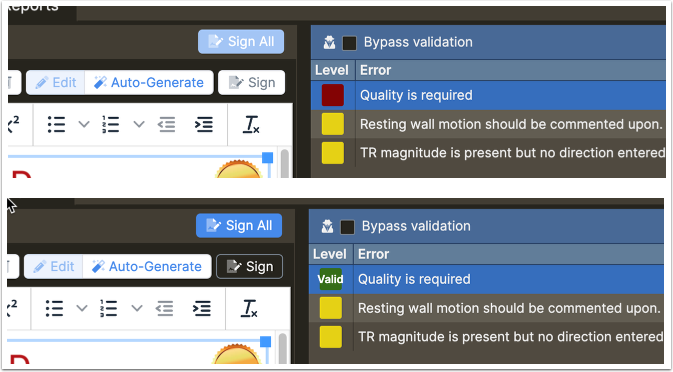
- Signing is only possible when all required validations are resolved.
- "Sign All" allows batch signing if multiple reports are required and user has permission to sign multiple reports. Otherwise, Sign and Sign All function the same.
Key Terms
- Report Tab: The workspace for assembling and finalizing clinical reports.
- Draft: A saved version of a report in progress.
- Validation: System checks to ensure completeness and accuracy.
- Auto Generate Mode: Automatically updates the report based on data entry.
- Edit Mode: Manual editing mode for custom report changes.
- Sign/Sign All: Actions to finalize and authenticate reports.
- Understanding these terms is essential for effective use of the Report tab.
- Each term relates to a specific function or feature within the reporting workflow.