General Layout
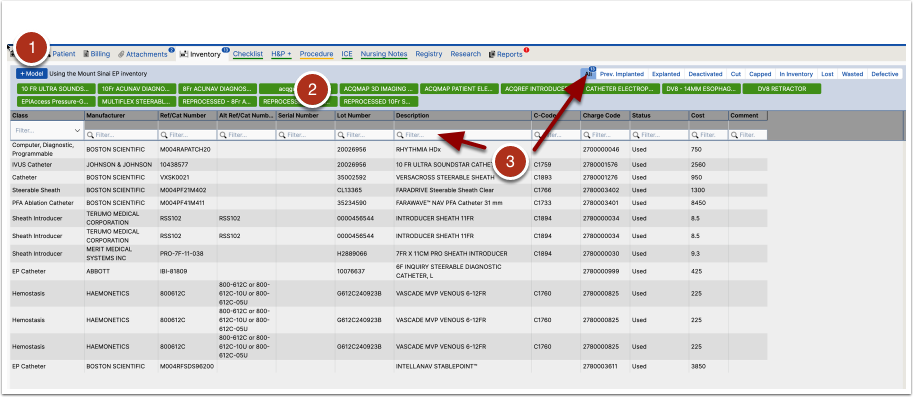
The inventory tab displays all items scanned into the open case. Barcode scanning is the most common way for items to be entered into the list. There are 2 other methods:
- Manually adding an item/model (details below)
- Using the quick-add feature which is configured by the Inventory Admin.
The list can be filtered/sorted using (3) the column headers as well as the button bar on the upper right
Using the barcode scanner
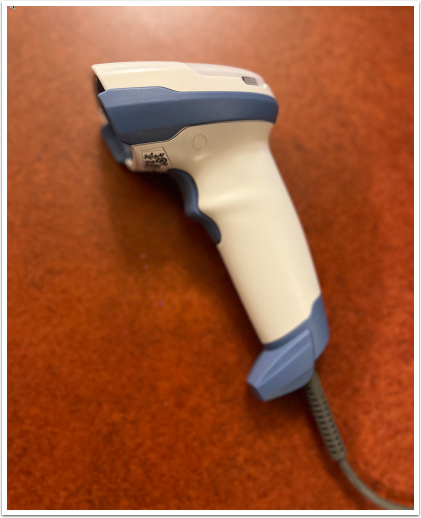
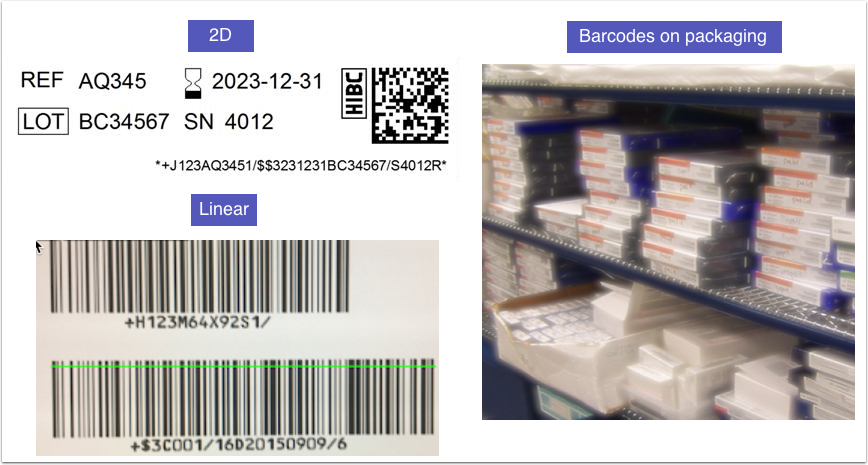
This is a photo of the standard EncaptureMD barcode scanner. Barcodes come in linear and 2D variants (below). The provided barcode scanner can use either type.
(how to determine which code to scan
What if there is no barcode on packaging - Add manually or use quick add)
Reprocessed and barcodes)
Sample Barcodes
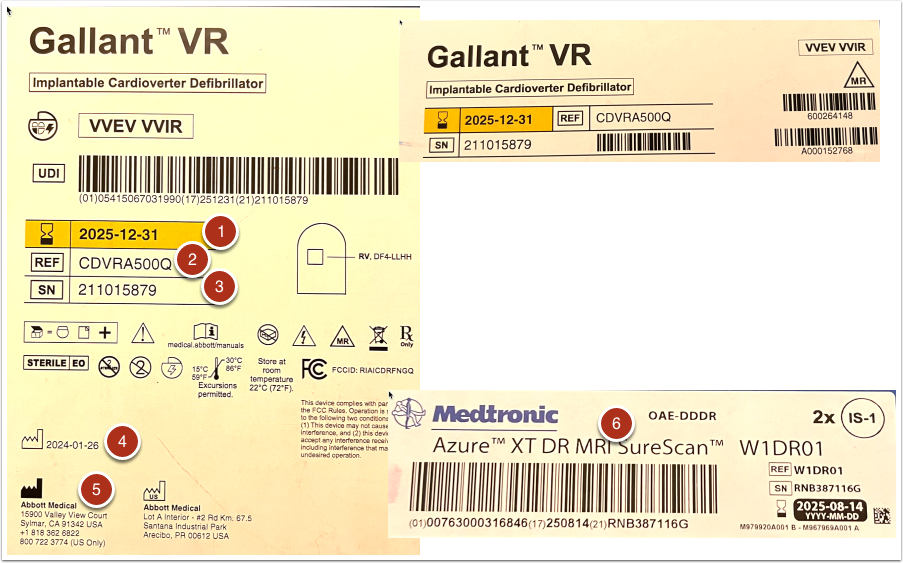
This is the top and side of one box and the side of another. There is no consistent location on packaging for the position of barcodes.
The Gallant VR device lists:
- Expiration date
- Reference number
- Serial number
- Manufacture Date
- Manufacturer
That information will be in the single barcode on the top of the box. In addition, it will have the manufacturer and other information.
The Medtronic barcode (6) is very similar but is on the side of the box not on the top.
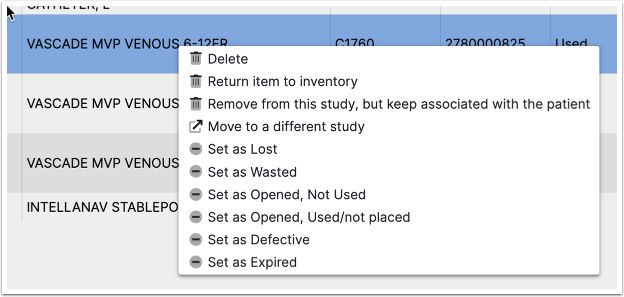
Right Click functions
- Delete - removes the item from the list but does not return it to inventory (e.g. never in inventory, trunk stock, etc)
- Return item to inventory - removes this item from the list AND returns it to inventory (e.g. never opened)
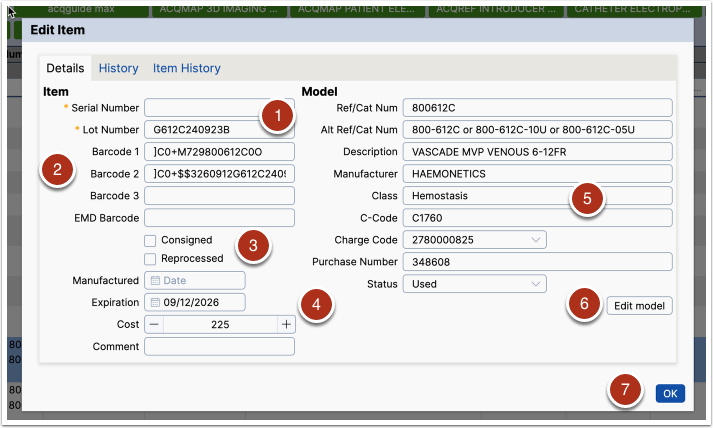
Editing Item information history
- An item has EITHER a serial number or a lot number.
- On first scan an item can have one or two barcodes depending on the type of barcode used. A generic EncaptureMD barcode can also be defined for the item. None of this should be edited.
- Consigned and Reprocessed
- Consigned items are provided by the manufacturer and are only paid for when the item is used
- Reprocessed items are original high-value reusable items that are cleaned, sterilized and ready to be used again. They often have different model information
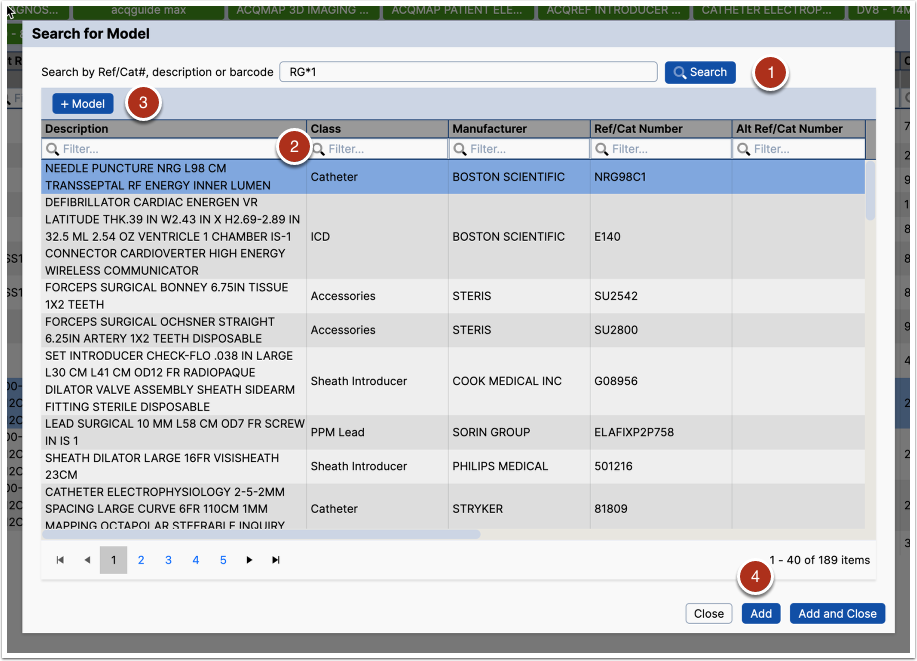
Searching for a model
- Search for a model by Ref/Cat, description or barcode. Click Search.
- Use the column filters to narrow the search OR search again (1) using more descriptive terms.
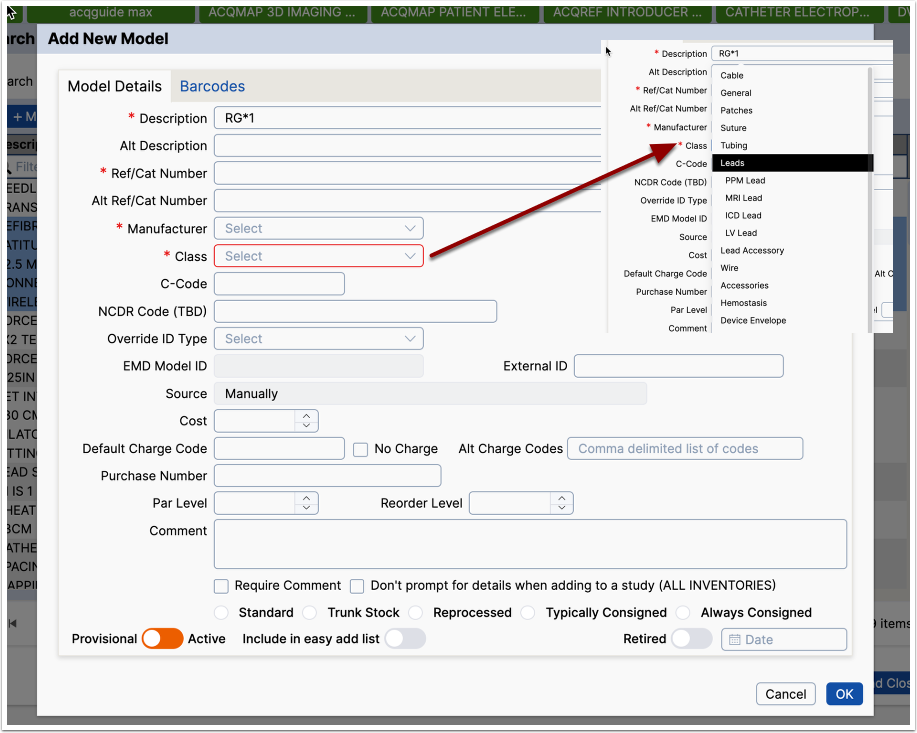
- If the model is not found after careful review, click +Model to add a new model
- Click Add to add this model and repeat with another model or Add and Close to just add one model. Close will cancel this action.
Adding a new model
Description of the fields and their purpose
- Description (see detail below)
- Alt description
- etc
- Classes
- etc
- Provisional v Active
- Include in Easy Add
- Retire