Reports not updating when data is entered into field(s) occurs when a report has been switched to "Edit" mode before the signing user has had an opportunity to review the data and update discrete fields during the interpretation process.
Editing Data with Smart Sentences
Users can edit information using smart sentences within the data entry interface.
- Smart sentences are located on the same tab as the data entry fields.
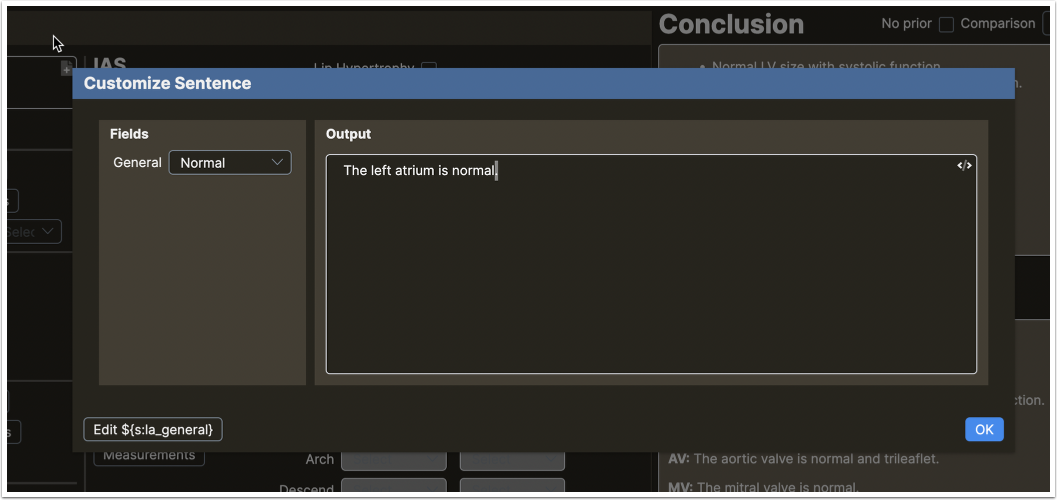
- To edit, click on the sentence you wish to change and make your edits directly.
This approach streamlines the editing process, making data updates more intuitive and efficient.
Validation to Prevent Accidental Overwriting of Customized Sentences
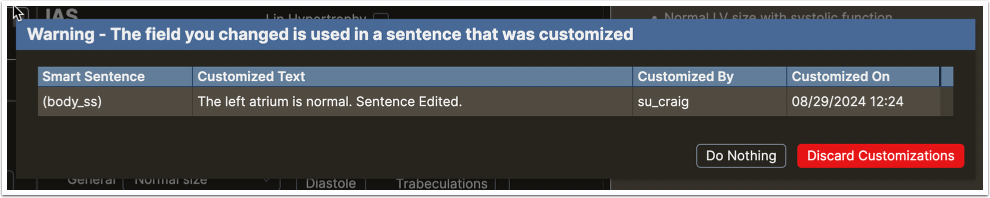
A validation feature designed to protect customized sentences from being unintentionally overwritten by users exists.
- The system includes a validation mechanism that detects when a user attempts to modify the field responsible for generating a sentence.
- If such a change is detected, the user receives a warning to prevent accidental loss of their customized content.
This approach helps maintain the integrity of user-customized sentences by alerting users before potentially disruptive changes are made.
Validation Feedback in Smart Sentences and Reports
Users can view and interpret validation feedback using the smart sentences feature and the Reports tab within the application.
- Clicking the numbered or colored squares in the blue bar at the top displays validation details.
- Colors and numbers indicate error types: Red for required errors, Yellow for warnings.
- This validation mechanism functions identically in both the smart sentences area and the Reports tab.
- To see real-time error corrections reflected in the Reports tab, the report must be set to Auto Generate mode.
Utilize these features to efficiently identify and resolve validation issues in reports.
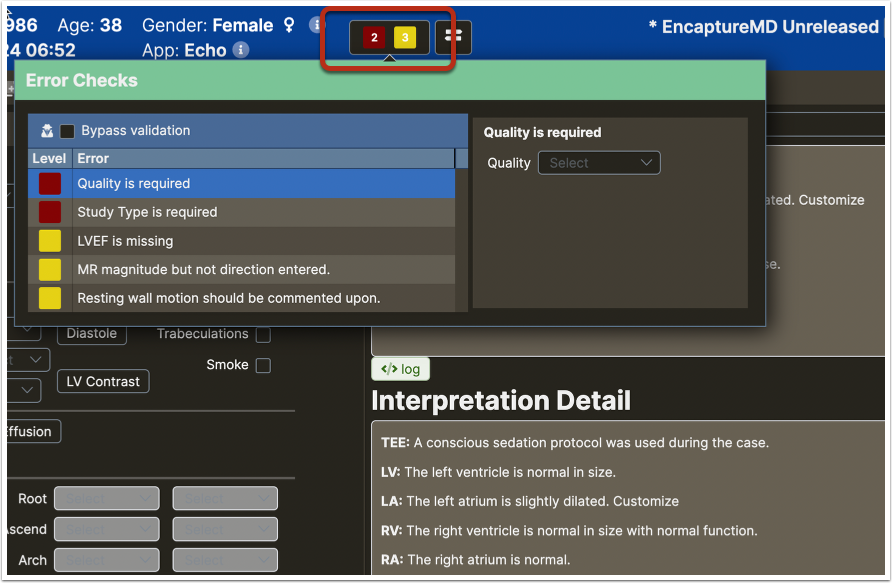
Normally when the MD opens the report tab, the system is still in Auto-Generate mode. If the MD opens data tabs to make changes, the report will update with data as it is entered.
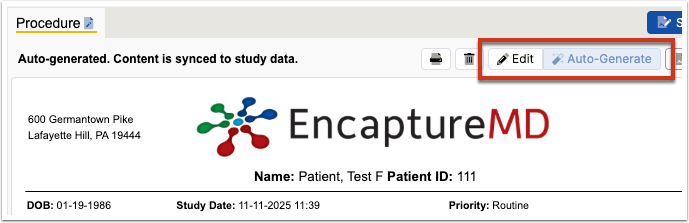
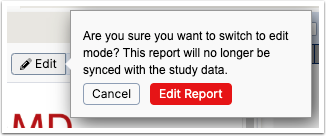
Switching to Edit mode requires a second confirmation by the user.
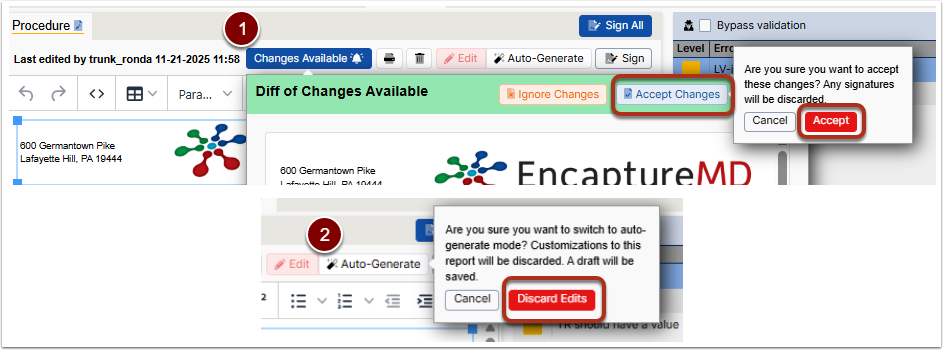
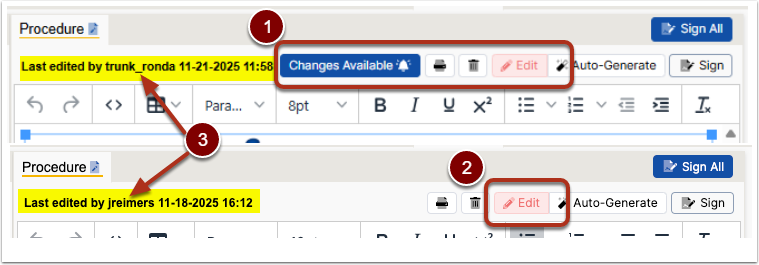
When the report is switched to Edit mode by a non-MD user, the MD will see one of the following when opening the Reports tab.
- Changes Available and a pink Edit button (1)
- Only the pink Edit button (2)
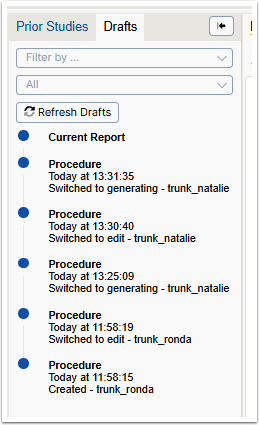
The yellow highlighted information (3) provides the details (username and date/time) of when the report was switched to Edit mode.
A report may be returned to syncing with the data input fields by doing one of the following:
- Clicking Changes Available (1) --> Accept Changes --> Accept
- Click Auto-Generate (2) --> Discard Edits