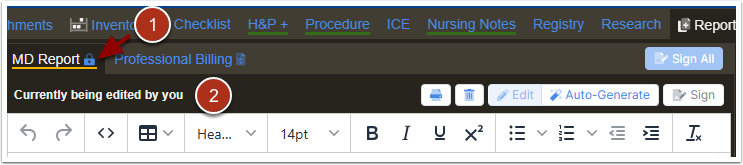
When a user is in edit mode, there is a lock symbol beside the report (1) and the status of the reports is "Currently being edited by you" (2).
If a second user or the same user in a new session opens the study to the reports tab, the user will see an option to "Request Lock".

Clicking "Request Lock" starts a 10 second timer and sends a message to the second user. Note that the "Request Lock" button will become unavailable while the request is processed.

If the session is active, the second user will be notified to "Deny" or "Grant" the lock release request. A countdown timer for releasing the lock displays. If there is no response, the lock will release after 10 seconds.

If the second user denies the request, the user requesting the lock will see the "Request Lock" button become available again

If the second user grants access or the 10 second time elapses without a response, the report will unlock and be available for editing.
