Overview
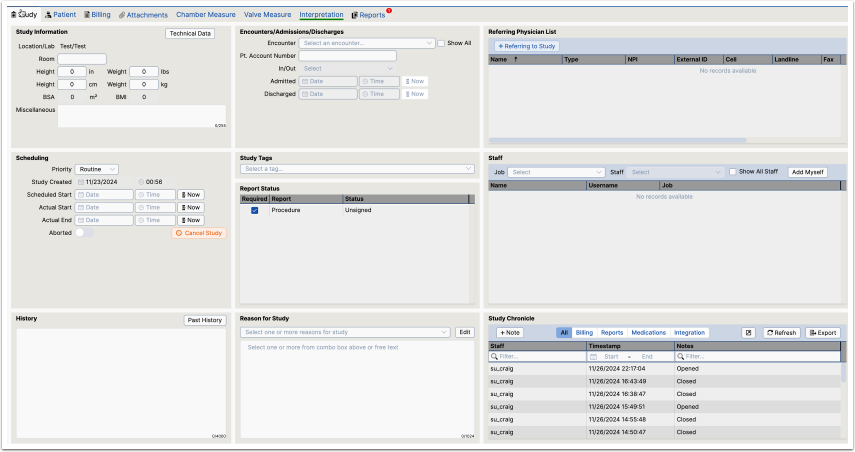
Study Information
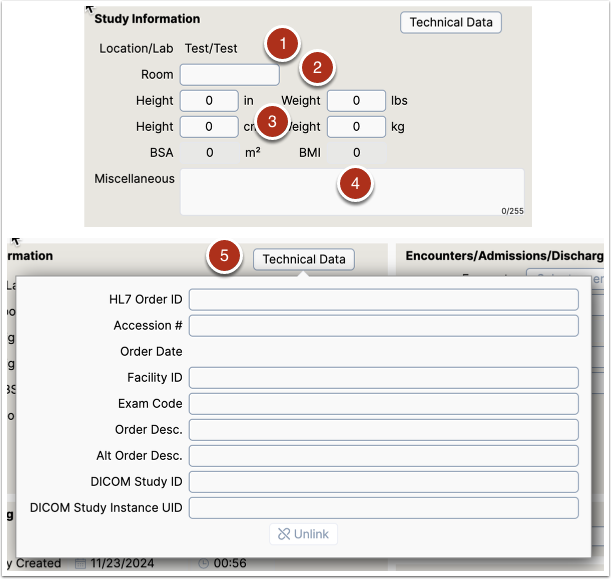
- The location and lab is referenced here. If it is not correct, it is often a problem with the order or the manual entry of the study. It can be fixed through the work list.
- Room often reflects the patient's floor room, but it can be used a a procedure room if desired and if the EncaptureMD Scheduler is not being used.
- The patients height and weight will usually come from the modality. This is most important in echocardiography as index values use the BSA (body surface area) to adjust heart size measurements.
- Miscellaneous is a field that can be used for multiple purposes. It appears on the work list as a column so any data entered can be displayed there. It is not usually used in the clinical report. It can also be used to hold order information which is copied in when the study is first opened.
- The Technical Data button shows HL7 and DICOM information related to the study. Its use is mostly limited to admin and developer users.
Scheduling
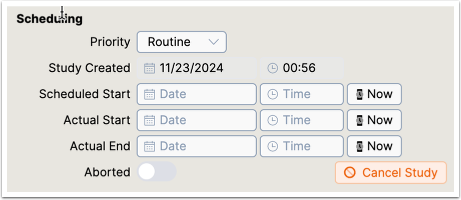
This section is available on all studies. If the EncaptureMD Scheduler is active, this section has more information.
Study priority is Routine, Urgent or Stat. If this is changed, it also changes on the work list. It can be set by an order.
- The Scheduled Start is the planned start time of the study. It may be set by an order or the Scheduler.
- The Actual Start can come from a modality, from the nursing documentation or be entered manually here.
- The Actual End mostly comes from the nursing documentation. It is not required otherwise.
History
History is a free-text field that can be used to document a short phrase to explain why the procedure is being performed. In some apps, there ia a full history and physical which can be documented instead. Some users will copy and paste a history from a different source like an EMR.
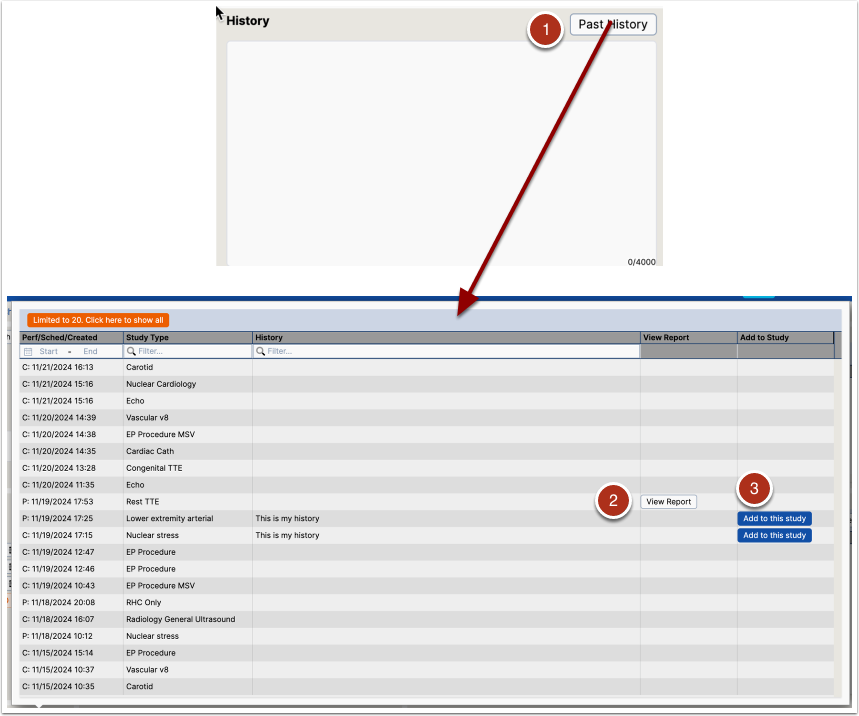
- Clicking the Past History button opens a pop up window that shows previous history values. It only shows the last 20 which is enough it almost all cases, but repeat patients with multiple studies can have many and more can be shown by clicking the orange button at the top left. Past History shows all histories from all different study types.
- View Report shows completed reports for review. Only completed reports have this button.
- Add to this study adds the history text from a previous study into the present study. Only studies with values in history have this button.
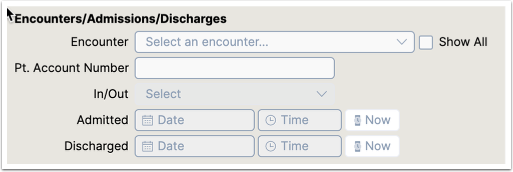
Encounters/Admissions/Discharges
This section is used if a customer has an orders interface that uses encounters. An encounter is any block of time where a patient is being seen by hospital staff. This can include an ER visit, an outpatient office visit or an inpatient stay. It may occur on one day or across many days. When the interface is working, the Encounter is selected properly. There are times when it does not and the Encounter combo box allows the user to adjust. Pt Account number, In/Out and Admitted/Discharged is set by the encounter.
If there is no order interface, the In/out and admit/discharge can be manually adjusted.
Additional information may show here when the EncaptureMD Scheduler is active.
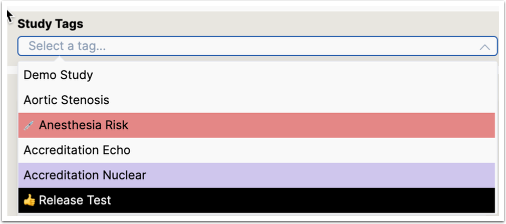
Study Tags
Study Tags are a way to classify studies. More than one tag can be chosen. They are set up by an administrator. The use of the tags is custom to the app and the customer work flow.
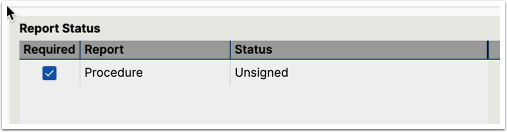
Report Status
In cases where there is more than one report per study (e.g. an MD report and a nurse report) there are times when one of the reports that are normally required to cause the study status to be considered final cannot be finished. By un-checking it from being required in this box, the study will become final on the work list.
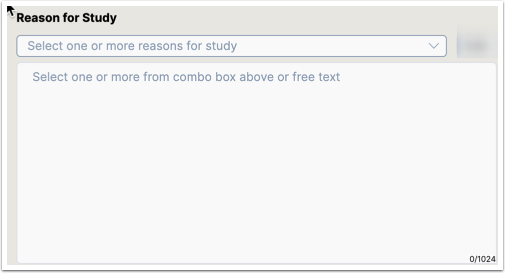
Reasons for Study
A study can have one or more than one reason for being performed. The reason is tied to the patient's history and also billing information, but a specific reason for study is often required. A properly privileged user can edit the list. This list is different for each application. It is usually required, but the requirement can be disabled if desired.
Referring Physician
This section associates referring physicians with the study. EncaptureMD has its own internal database but can also receive this information from an EMR order.
There can be one or more referrings per study. At least one entry is usually required. Each one can be classified as ordering, referring. etc as the list below shows. This list is defined by the HL7 standard, but can be modified by an administrator if required.
If you are using the auto-fax feature in EncaptureMD, any referring on the list that has a fax number listed will be sent a secure fax. Use the Fax Manager to ensure that all faxes go out each day and to re-trigger those that don't.
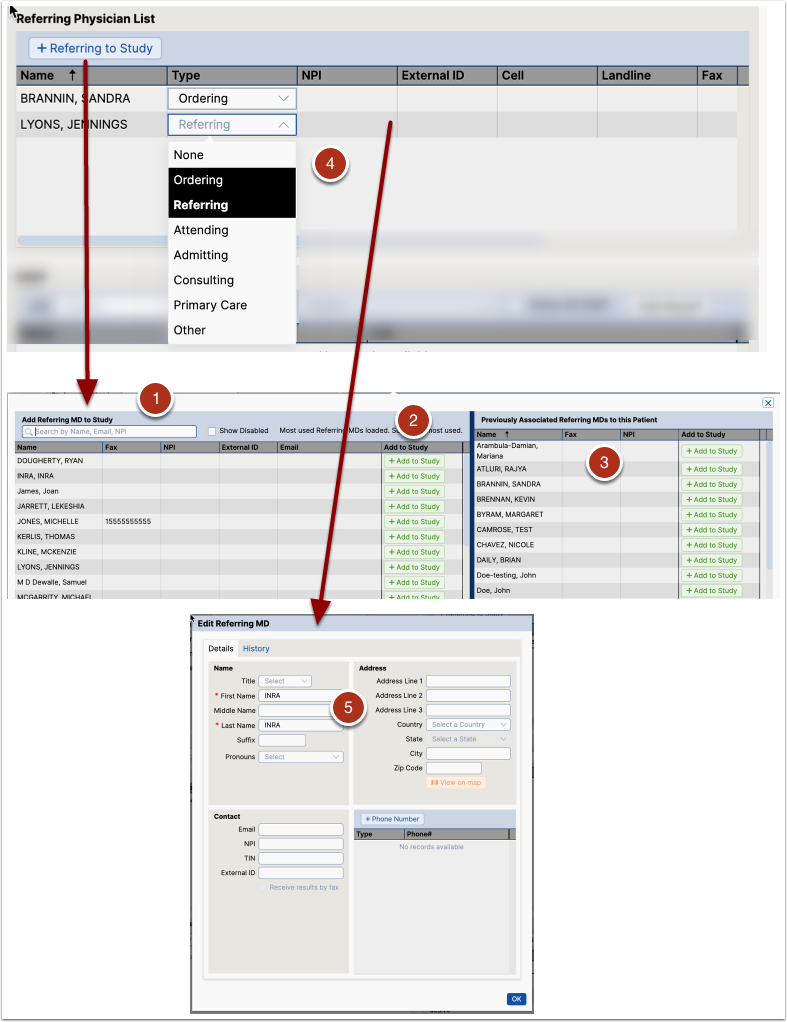
- Once you click the +Referring to Study button, this window will pop up. You can search for a referring doctor by entering their name or other identifying information or review the information below
- One or more referring MD's can be added to the list
- EncaptureMD remembers all MD's who have been associated with this patient so they can be easily chosen again.
- Once the referring has been added to the list, choose a type from the list. If a referring belongs in more than one category, add 2 lines and change the category in each.
- If you double click on a referring's name from the Referring Physician List, its editor opens (provided editing is not disabled because the information is coming from an order and needs to be edited in the EMR if it is wrong) then the data can be edited. Click +Phone Number to add a fax number.
Staff
The staff list shows everyone who materially participated in a study. It may be a simple as and MD and a tech, or a complex as a combined interventional procedure that has 6 or more staff listed.
If nurse notes are being recorded in EncaptureMD, this list can be filled out through documentation required for the procedure.
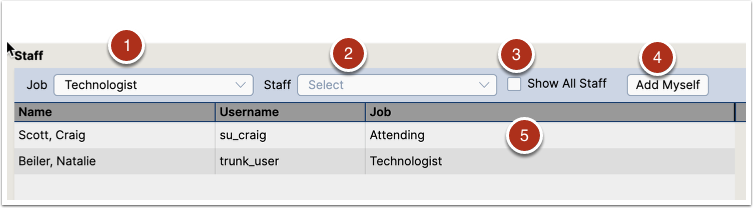
- The job list varies by application. Jobs are assigned to users through privilege groups.
- Once the job has been chosen, the Staff combo box will be populated with staff assigned to that job.
- The Show All Staff checkbox allows the user to assign a person to a job they don't normally do (e.g a cardiology fellow performing as a sonographer for training purposes). When selected the Staff list shows all users assigned to all jobs for this app.
- Add Myself just adds the present user to the staff list. The system knows the job the present has and fills out name and job.
- Right click on the list to remove a person from the Staff list.
Study Chronicle
The Chronicle is a log of all actions performed during a study. Every action has the staff who performed the action and the time it was done. They can be filtered by Billing, Reports, Medications and Integrations.
The chronicle is a powerful way to sort out what may have happened to a study by showing each step in the process. In that way, the user, often an admin, can pinpoint why a problem may have occurred and resolve it.
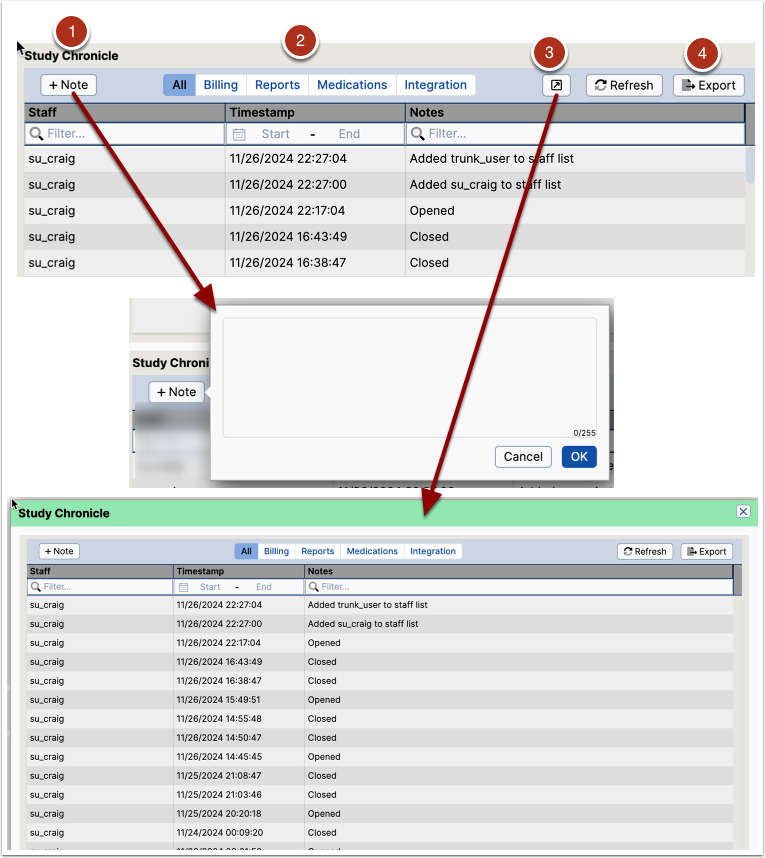
- +Note allows the user to add a row to the chronicle.
- The menu allows filtering by category. Filtering can also be done by column header or headers.
- This icon pops up a larger view. Click the X in the upper right corner to close the view.
- The chronicle can be exported as a spreadsheet.