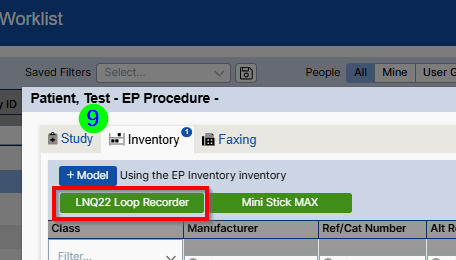
What you will accomplish: You will enable the 'Easy Add' option for an inventory item to display as a quick add button on the Inventory tab within a study.
Select Inventory from the left side panel to open Inventory Manager.
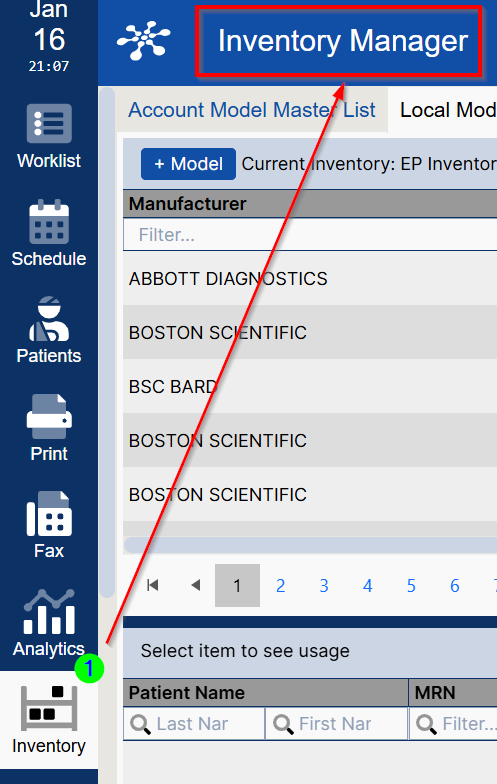
- Validate appropriate Local Inventory for your location.
- Default inventory will be the last local inventory the user opened.
Users with access to more than one inventory will see a list.

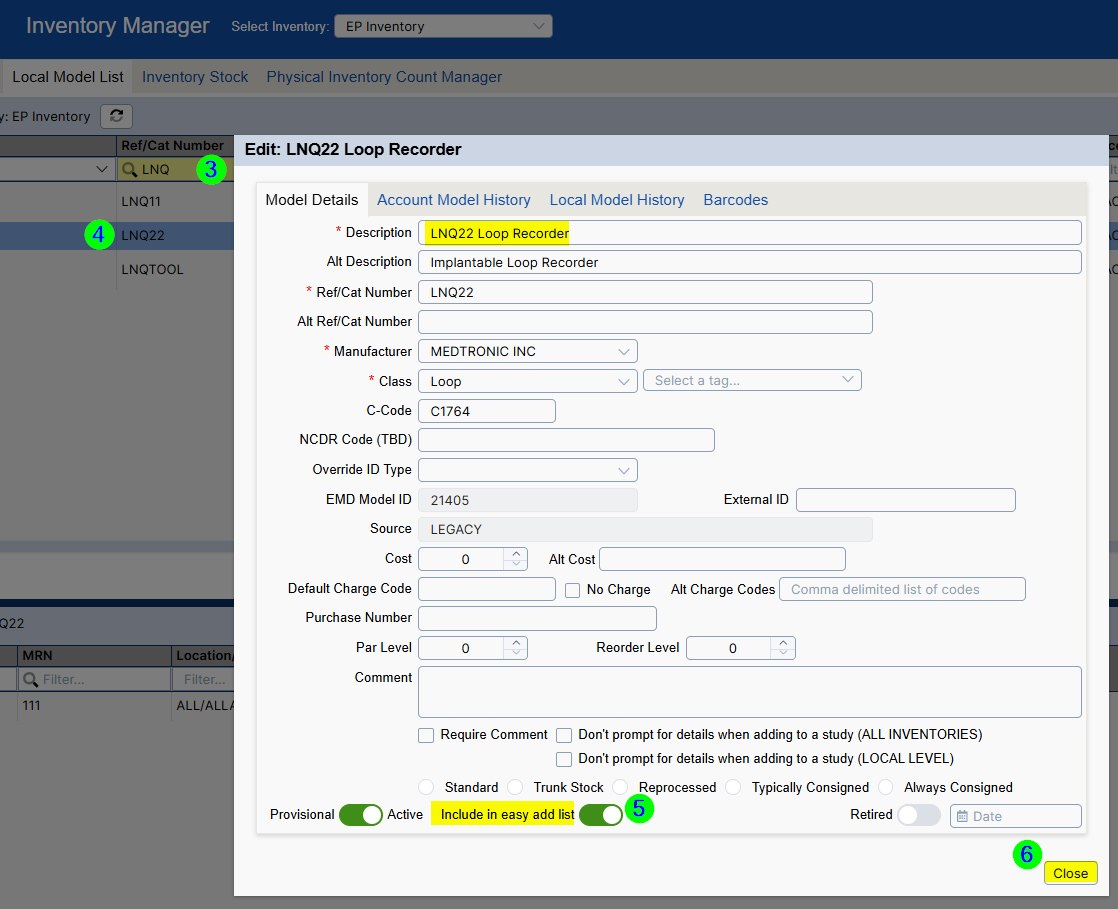
- Search for the desired inventory item by using the column headers as filters.
- In the example below, LNQ has been typed into the Ref/Cat Number column header.
- Double-click the desired inventory item.
- Slide the toggle to the right for Include in easy add list.
Click Close in the bottom right.
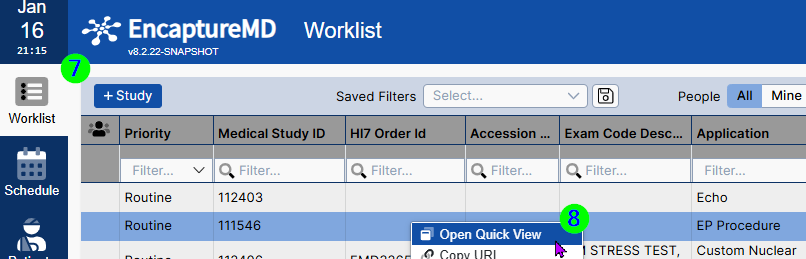
- Click Worklist from the left side panel.
Right Click a study to select Open Quick View or Double Click to open the study
Select the Inventory tab to validate the new green easy add button.