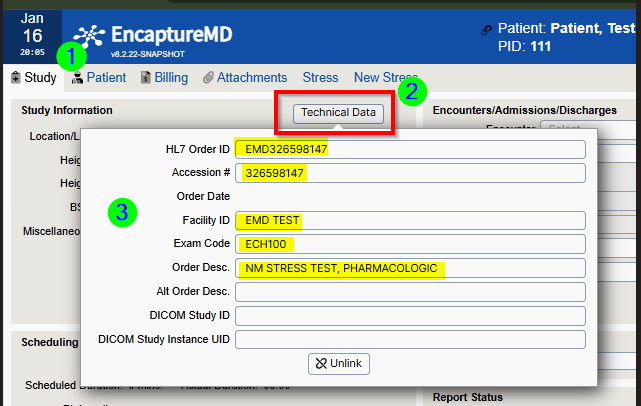
What you will accomplish: You will remap studies to the correct application using the order mapper and restart studies that are in an incorrect application.
Access the Order Mapper
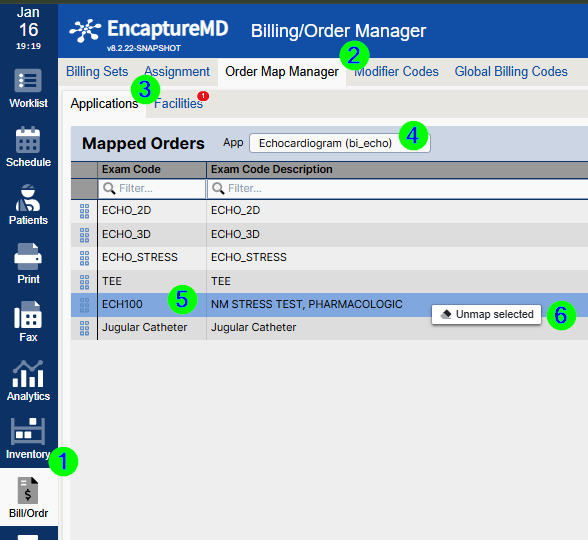
- Click Bill/Order in the left sidebar.
- Click Order Map Manager.
- Select the Applications tab.
- Choose the application receiving studies incorrectly.
- Find the Exam Code to remap.
- Right click the row and select 'Unmap selected'.
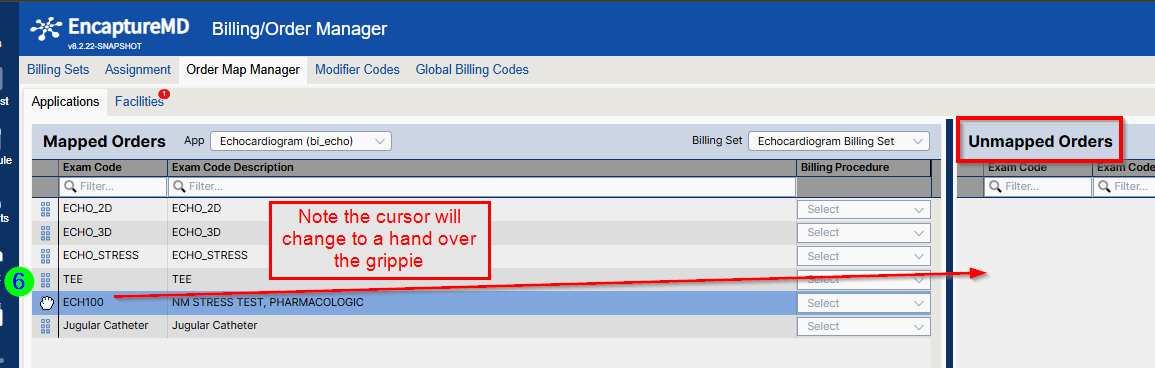
Or, click and drag the grip on the far left to unmapped codes on the right.
Remap Exam Code to Correct Application
- Select the correct application.
- Right click the exam code in 'Unmapped Orders'.
- Click 'Map selected to current app'.
Or, click and drag the grip on the far left to the mapped order on the left for the selected application.
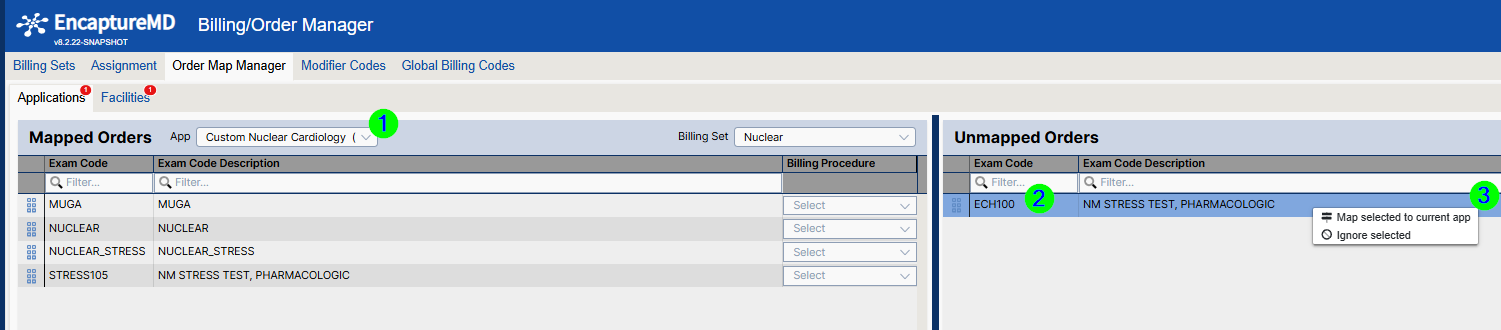
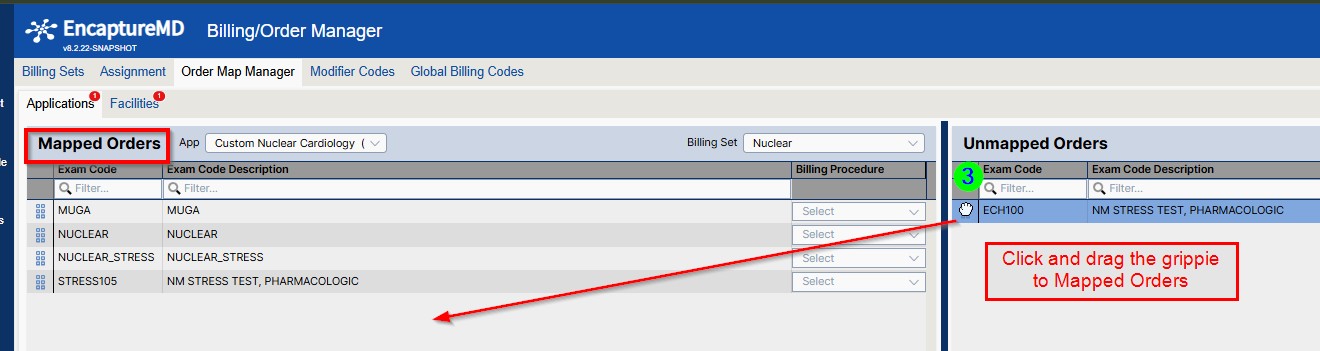
The exam code is now mapped to the correct application.
Restart Study in Correct Application
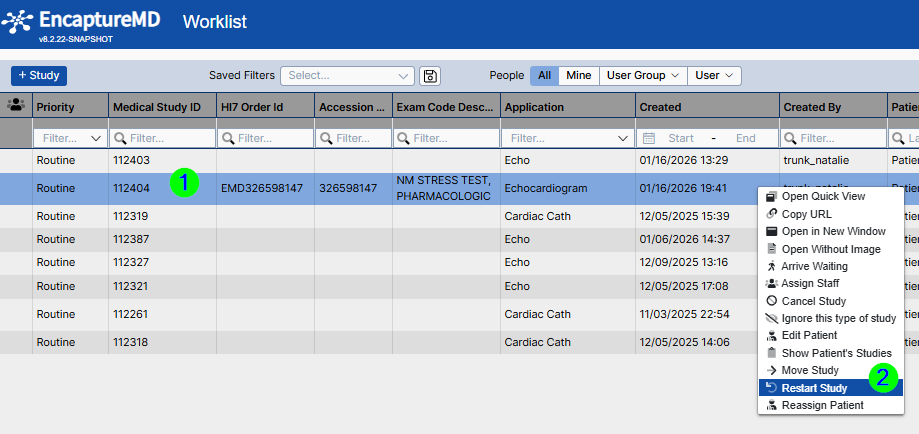
- Find the study on the worklist and right click it.
- Select Restart Study.
- The original study will be Canceled.
Optional: Permanently delete the original study after restart by right clicking on the worklist.
Verify Technical Data in Restarted Study
- Go to the Study tab.
- Click Technical Data.
Verify information (e.g., DICOM Study Instance UID is correct and removed from the incorrect study).