What you will accomplish:
- Set inactivity threshold
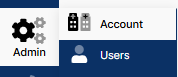
Go to Admin -> Account and click the Security tab.
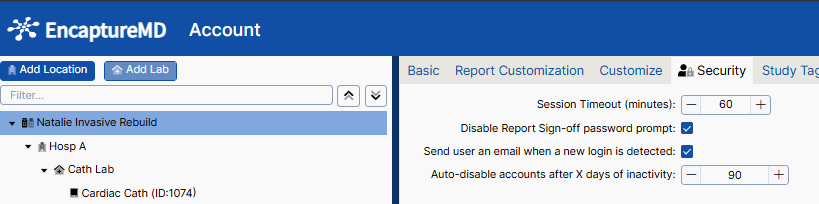
- Find the "Auto-disable accounts after X days of inactivity:" parameter.
- Set the number of days for inactivity.
- The default is 90 days.
If the field is blank, the default value of 90 days is enforced.

- The default is 90 days.
- Exclude users from auto-disable
Some users may need to be tracked in studies but never log in (e.g., anesthesia, nuclear medicine study participants).
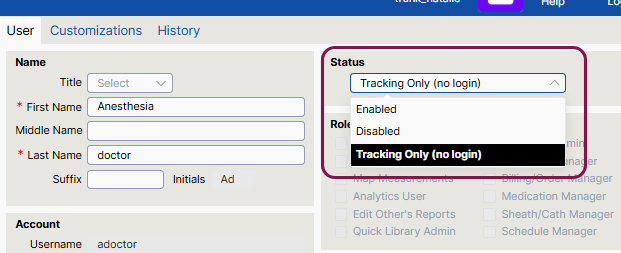
- Assign the status "Tracking Only (no login)" to these users.
Users with this status will be ignored by the nightly auto-disable job.
- Understand user notification
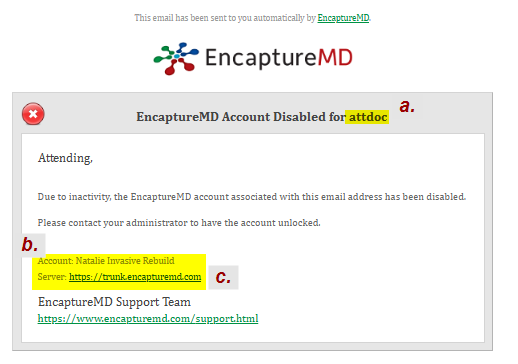
- When a user is disabled, they will receive an email notification from [email protected] containing:
- Username
- Account
Server
- When a user is disabled, they will receive an email notification from [email protected] containing:
- Re-enable a disabled user
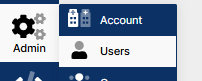
Go Admin -> Users.
Filter for disabled users.
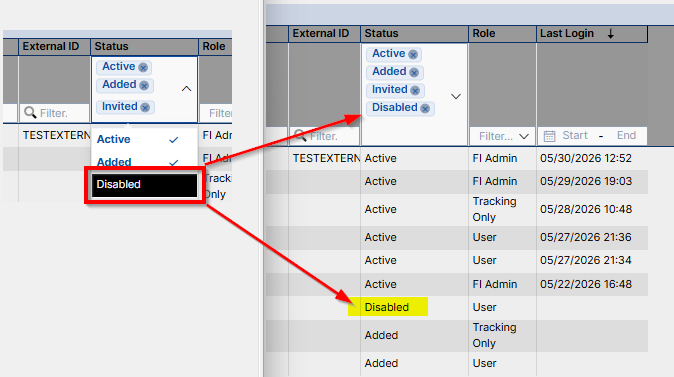
- Select the user to re-enable.
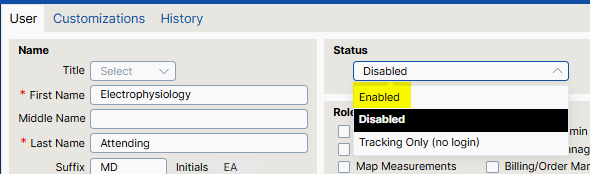
Set the user status to Enabled.
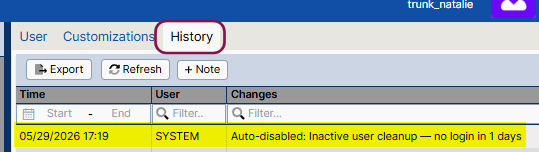
Review the user's history to see that they were disabled by the system job due to inactivity.
- Contact support for questions
If you have questions about this process, contact the Support Team by using the Help button or emailing [email protected].