What you will accomplish: You will create and use Custom Queries in EncaptureMD Analytics.
Open Analytics and Create a New Query
Click the Analytics tab on the landing page.
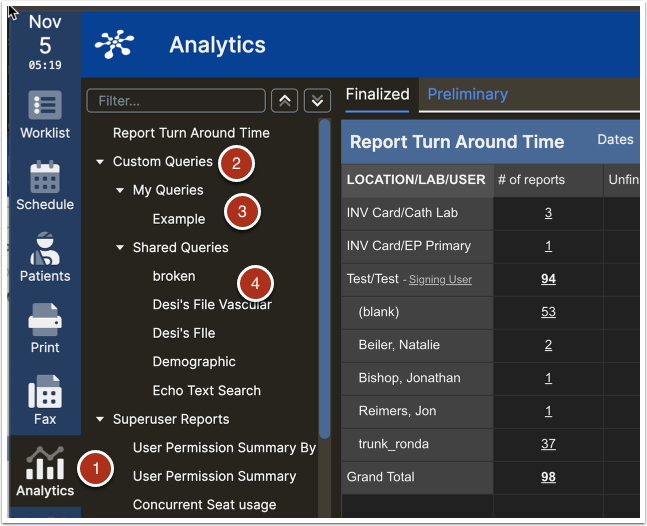
- Click Custom Queries, then click +New Query.
- Edit an existing query by clicking its name.
- Shared queries from team members are accessible here.
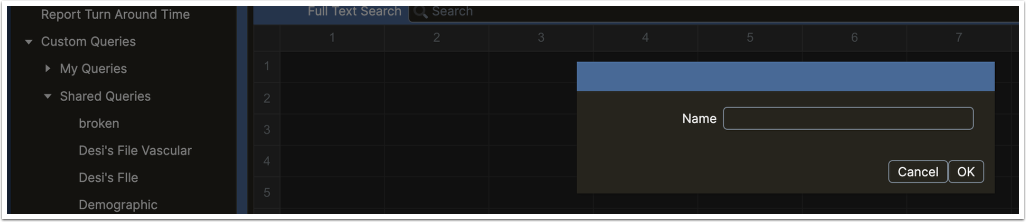
Enter a unique name for the new query and click OK.
Construct the Query
Edit the query name if needed.

- Click Shared to share the query with others.
- Pick a date range: Performed On, Scheduled On, or Updated On.
Choose one or more Apps.
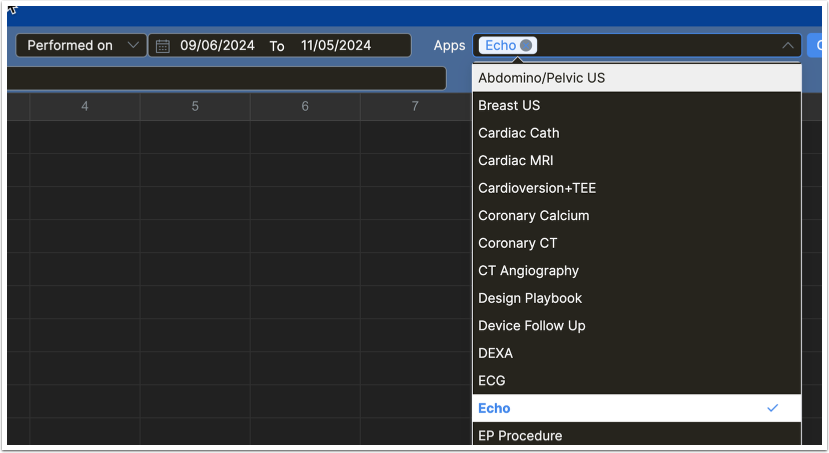
- Click Go to load app fields into the result grid.
- Click Save Query after any important change.
Choose the Fields to Display
All fields load by default. For Excel, click Export. For Analytics, click Fields to customize columns.
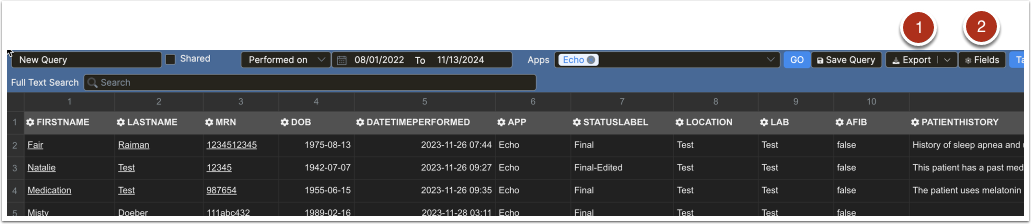
Uncheck Select All, then scroll or use Search to find fields. Check desired fields.
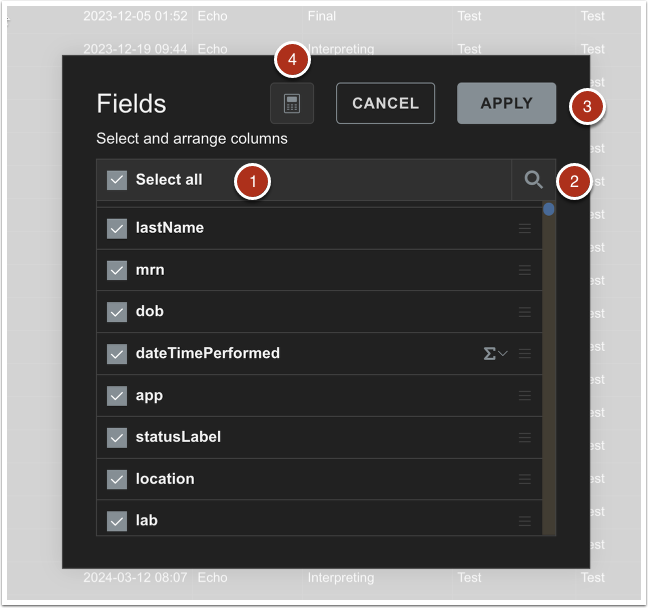
- Click Apply.
- Use Calculated Value for advanced analysis.
More info
- Rearrange columns by dragging in the list.
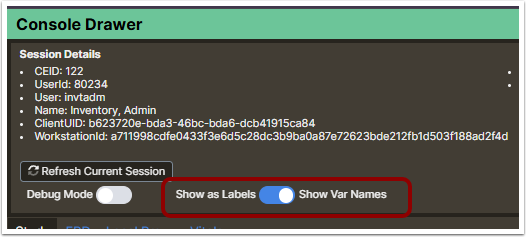
- Find field var names: Open a study, press ctrl+alt+d, toggle Show Var Names.
Filter Columns
Select or unselect values for checkboxes/combo boxes.
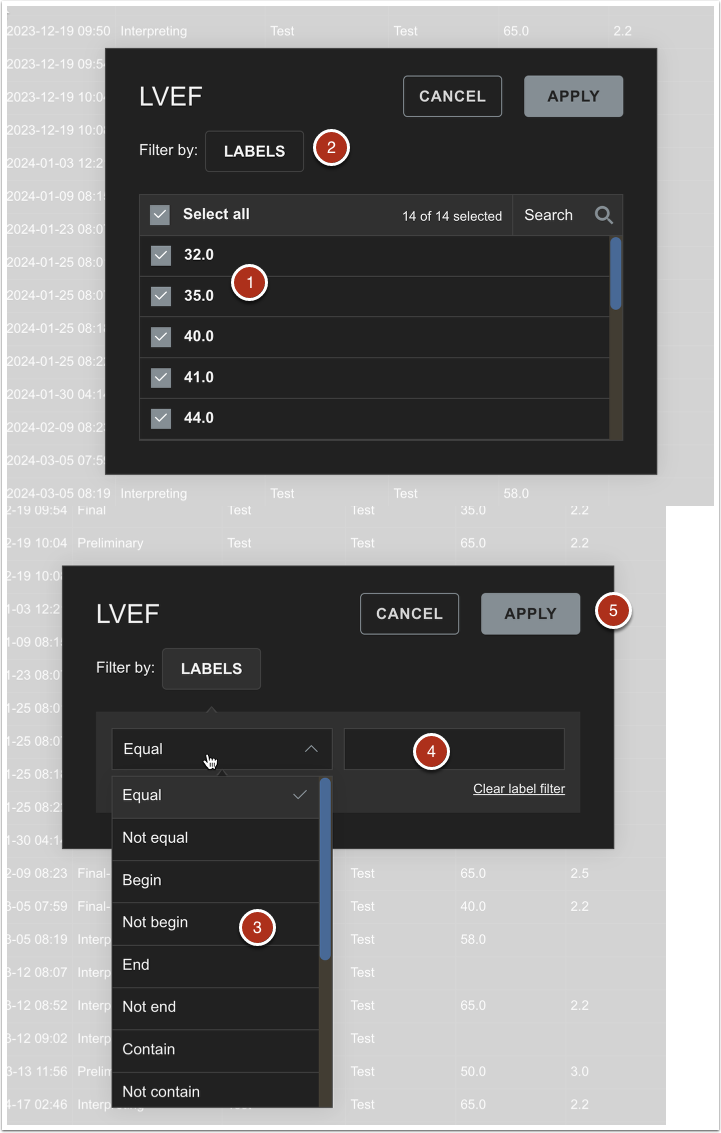
- Click Labels for numbers, text, or dates.
- Choose a comparison (e.g., Greater than or equal to, Contain).
- Enter the filter value.
- Click Apply.
Full Text Search
Enter search text in Full Text Search and click Go.
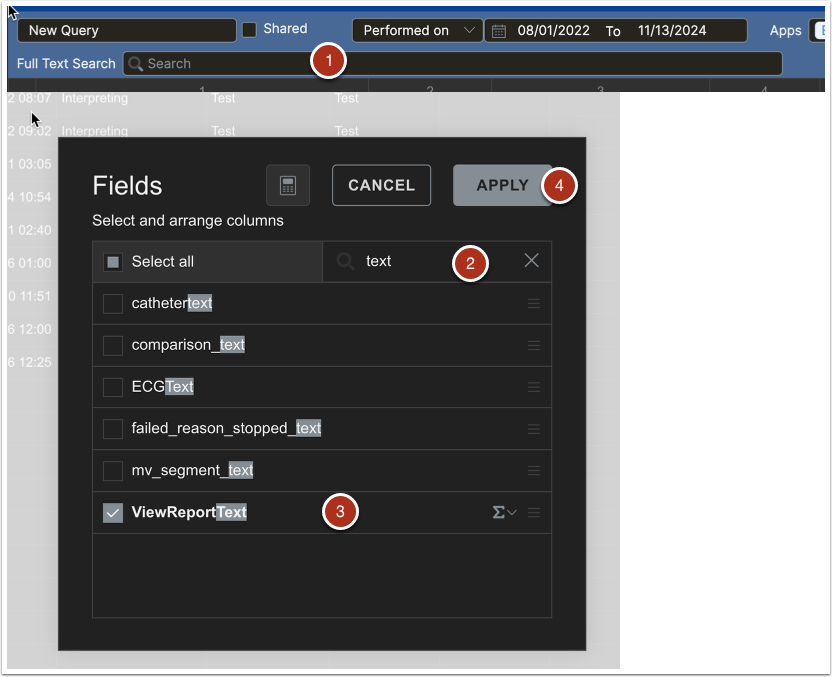
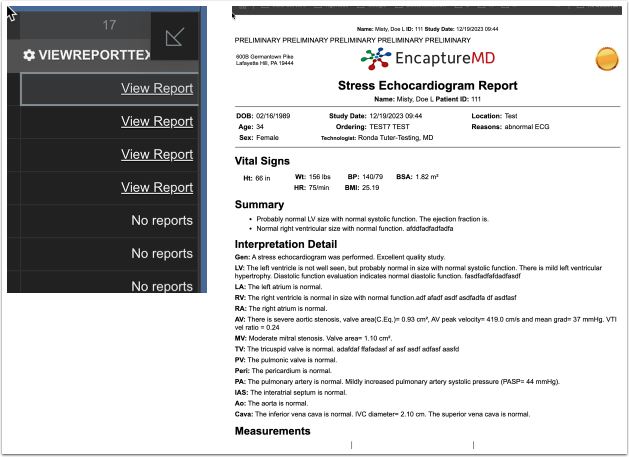
- Open Field selector, search for "text", and select ViewReportText.
- Click Apply.
A new column appears. Click View Report to open the report in a new tab. Use ctrl+f to find text.
Export
Click Export to choose a format.
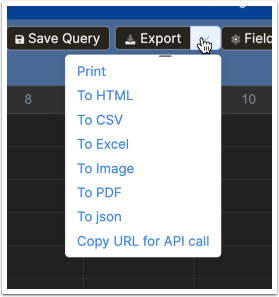
- Common formats: To CSV, To Excel.
- Advanced: To JSON, Copy URL for API call.