What you will accomplish: Remove inventory from a canceled study in EncaptureMD.
Prepare the Study for Inventory Removal
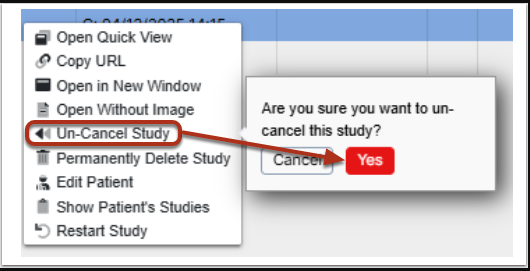
Right-click the study in the work list. Select Un-Cancel Study and Click Yes to proceed.
Remove Inventory Items
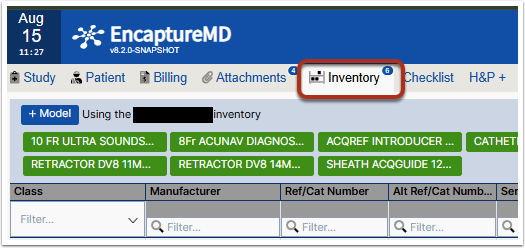
Open the study. Click the Inventory tab.
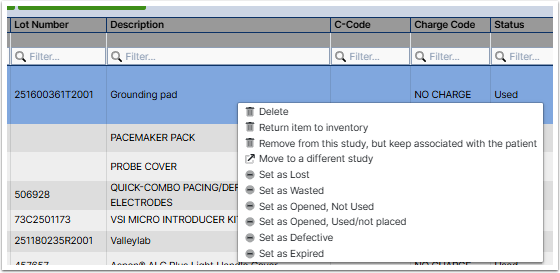
Right-click the inventory item to remove. Select the appropriate action:
- Delete – Not tracking inventory on the shelf.
- Return Item to Inventory – Tracking inventory on the shelf.
- Remove from this study, but keep associated with the patient – Keep item in patient record, remove from this study.
- Move to a different study – Move item to another study or patient.
Re-Cancel the Study
- Close the study.
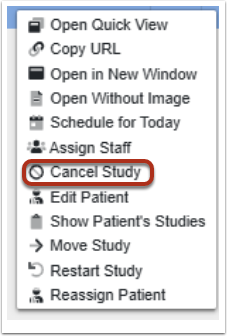
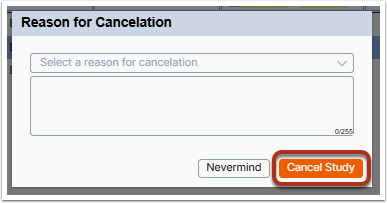
Right-click the study in the work list. Select Cancel Study.
- Enter a reason for cancellation (optional).
Click Cancel Study to confirm.
More info
- Super Admin access is required to cancel and un-cancel studies.
- Entering a reason for cancelation is optional. The drop-down list is configured per customer.
- Steps 2 and 3 apply even if the study is not canceled.