Overview of Mobile Photo Uploads in EncaptureMD
EncaptureMD allows users to upload photos directly from their mobile devices. This feature enables adding images to studies and support tickets, enhancing documentation and communication within the platform.
- Mobile uploads can be used for both study attachments and support tickets.
- The feature is accessible alongside traditional upload options.
- Network requirements may apply if your environment is institution-hosted.
Key Terms
EncaptureMD: A platform for managing medical documentation, including studies and support tickets.
Study: A collection of medical records or documentation within EncaptureMD.
Attachment Tab: The section within a study where files and images can be uploaded.
Support Ticket: A request for assistance or issue reporting within the platform.
QR Code: A machine-readable code that can be scanned by a mobile device to initiate an action, such as opening a secure upload portal.
- Understanding these terms helps in navigating the mobile upload feature.
- QR codes are used to securely connect your mobile device to EncaptureMD uploads.
Background: How Mobile Uploads Fit into EncaptureMD
The ability to upload photos from a mobile device streamlines the process of adding visual documentation to studies and support tickets. This is particularly useful for capturing real-time images or referencing existing photos stored on your device.
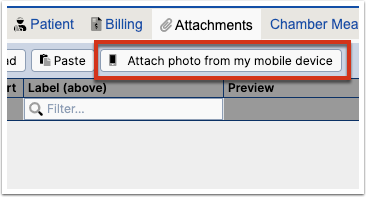
This image shows where the mobile upload button appears alongside traditional upload options in the attachments tab of a study.
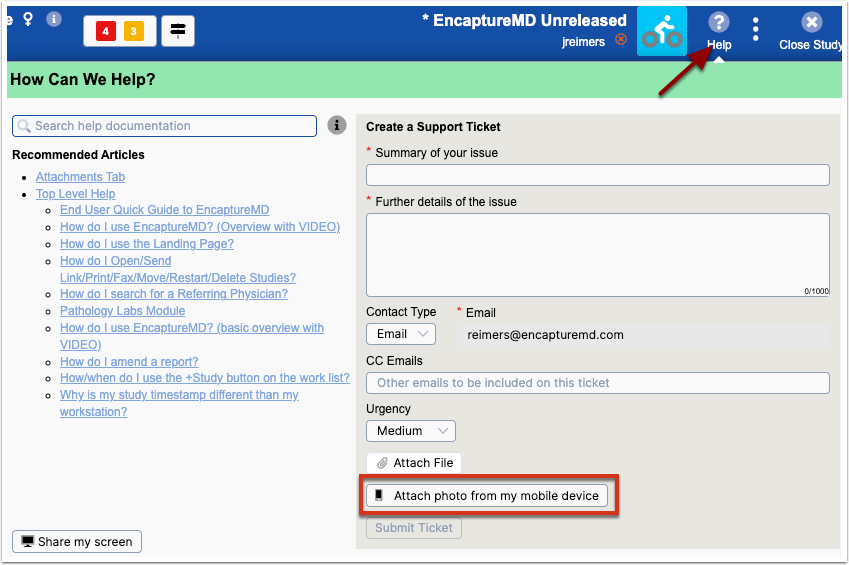
This image illustrates the mobile upload option available when creating a support ticket from the help menu.
- Mobile uploads enhance flexibility and immediacy in documentation.
- Both studies and support tickets support mobile image attachments.
Why Mobile Uploads Matter
Mobile uploads make it easier to capture and share relevant images without needing to transfer files between devices. This is especially valuable in clinical or field settings where immediate documentation is important.
- Improves efficiency by allowing direct uploads from mobile devices.
- Supports real-time documentation and communication.
- Reduces the need for manual file transfers.
Conceptual Flow of Mobile Uploads
The process of uploading photos from a mobile device to EncaptureMD involves generating a QR code on your computer, scanning it with your mobile device, and using a secure portal to select and upload images.
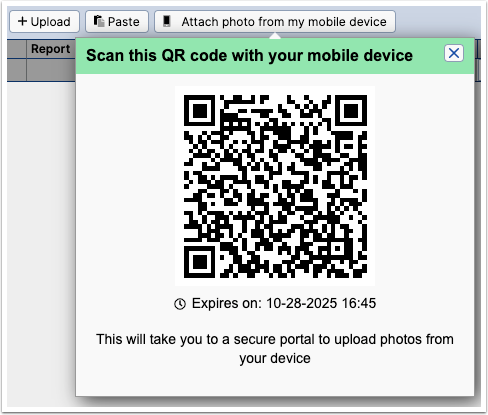
This image represents the step where a QR code is generated for secure connection between your computer and mobile device.
- QR codes provide a secure and convenient way to initiate uploads.
- The secure portal ensures privacy and data protection during uploads.
- The secure portal connection expires after 30 minutes.
Security Considerations
When using mobile uploads, it is important to ensure both your mobile device and the computer running EncaptureMD are connected to the same secure network, especially in institution-hosted environments. The upload process uses a secure portal to protect sensitive information.
- Always use a secure, institution-approved network for uploads.
- The secure portal helps maintain data privacy and compliance.