Overview of the Quick Library
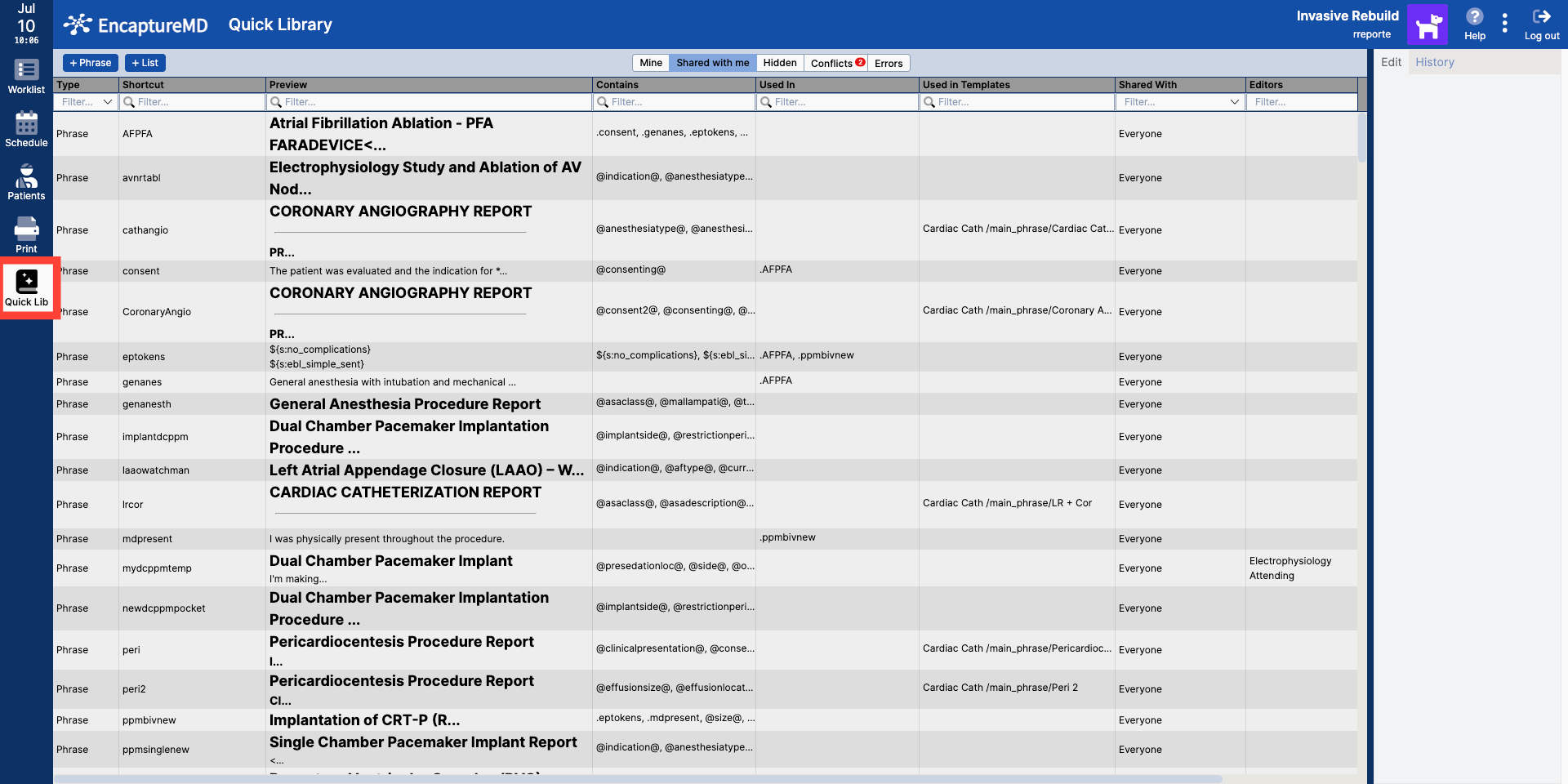
The Quick Library in EncaptureMD is a centralized feature that allows users to create, share, and manage reusable quick phrases and quick lists.
Key Terms
Understanding the following terms is essential for working with the Quick Library:
- Quick Phrase: A reusable text snippet that can be inserted into reports.
Quick List: A predefined list of items for quick insertion.
Creating a Quick Phrase
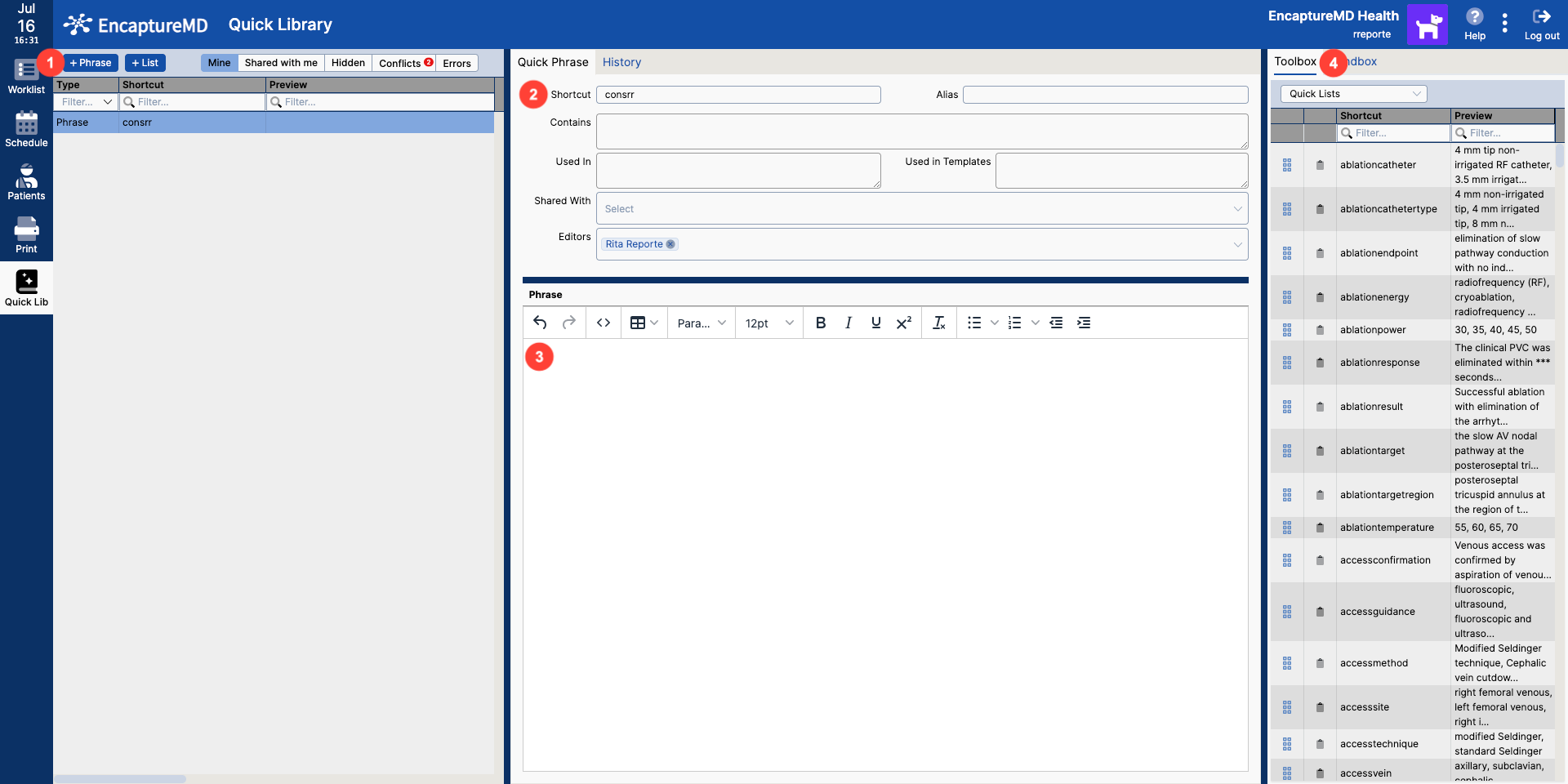
- Click on the
+ Phrasebutton - Create the shortcut name. This is what you will type out to invoke the quick phrase.
- Create your quick phrase in the editor
- The Toolbox on the right side has content you can drag and drop or copy and paste into your editor
Testing Your Quick Phrase in the Sandbox
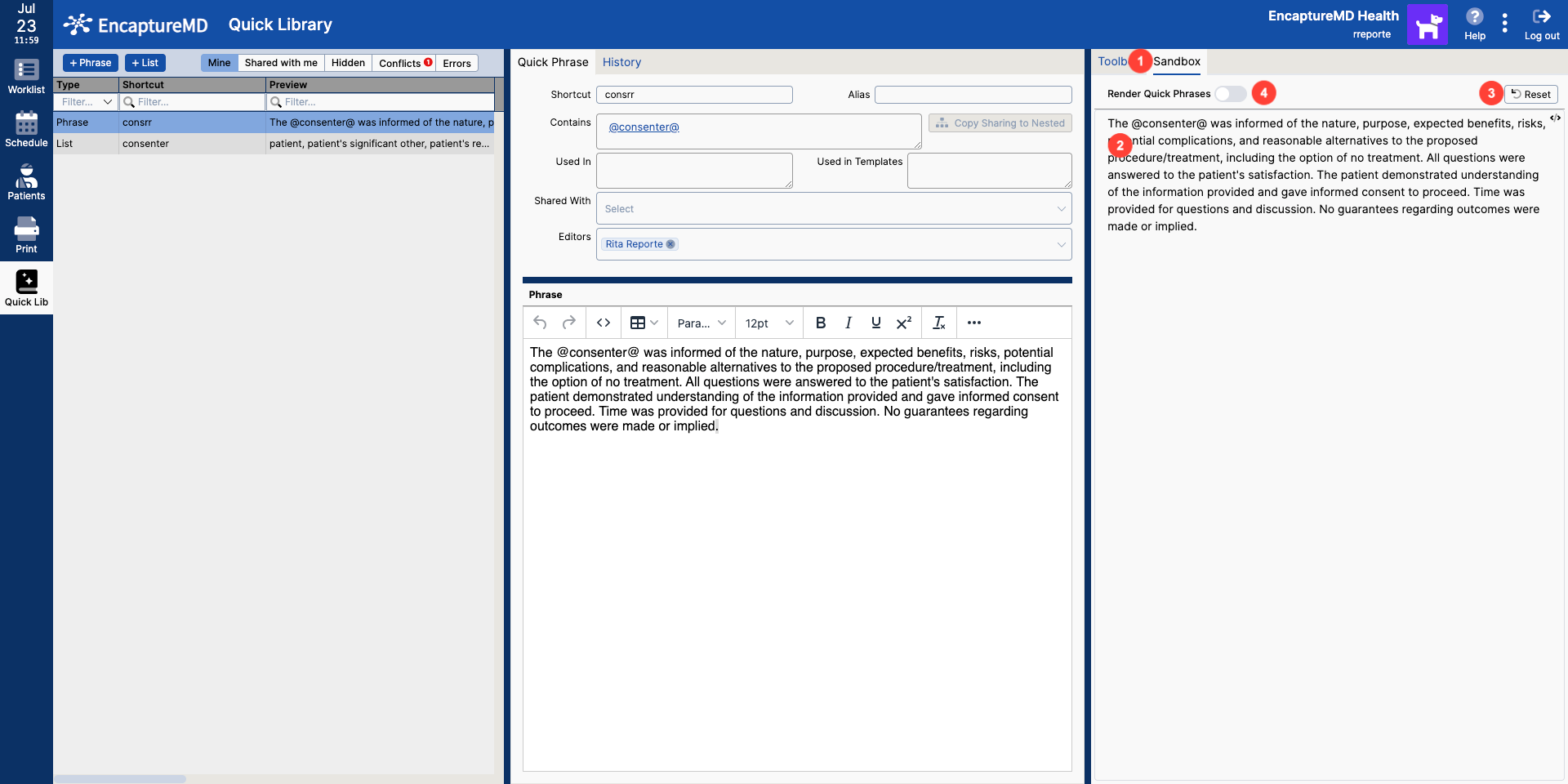
You can test out your quick phrases in the sandbox. Pressing F2 to jump between each interactive element.
- Click on the Sandbox tab to access the sandbox
- Sandbox area. Press
F2to jump between interactive elements. Test out new phrasing here as well. - Reset button will reset the sandbox content to what's in the editor
- Render quick phrases toggle. Useful if you want to make edits in the sandbox that you can copy and paste to create a new quick phrase.
Creating a Quick List
To create a quick list, Click on the + List button
- Create a shortcut name
- Click
+ Optionbutton to add a row - Fill out the Option column of the content that will be inserted once chosen
- Show Label Column - allows you to show labels for the options if content in the option column are hard to discern from one another (this is optional)
- Optional - allows the list to be filled out optionally.
- Set Default - allows you to set a default that will be selected by pressing enter when list is invoked
- Multi-Select - allows you to choose more than one option (press
F2when done picking from multi-select lists)
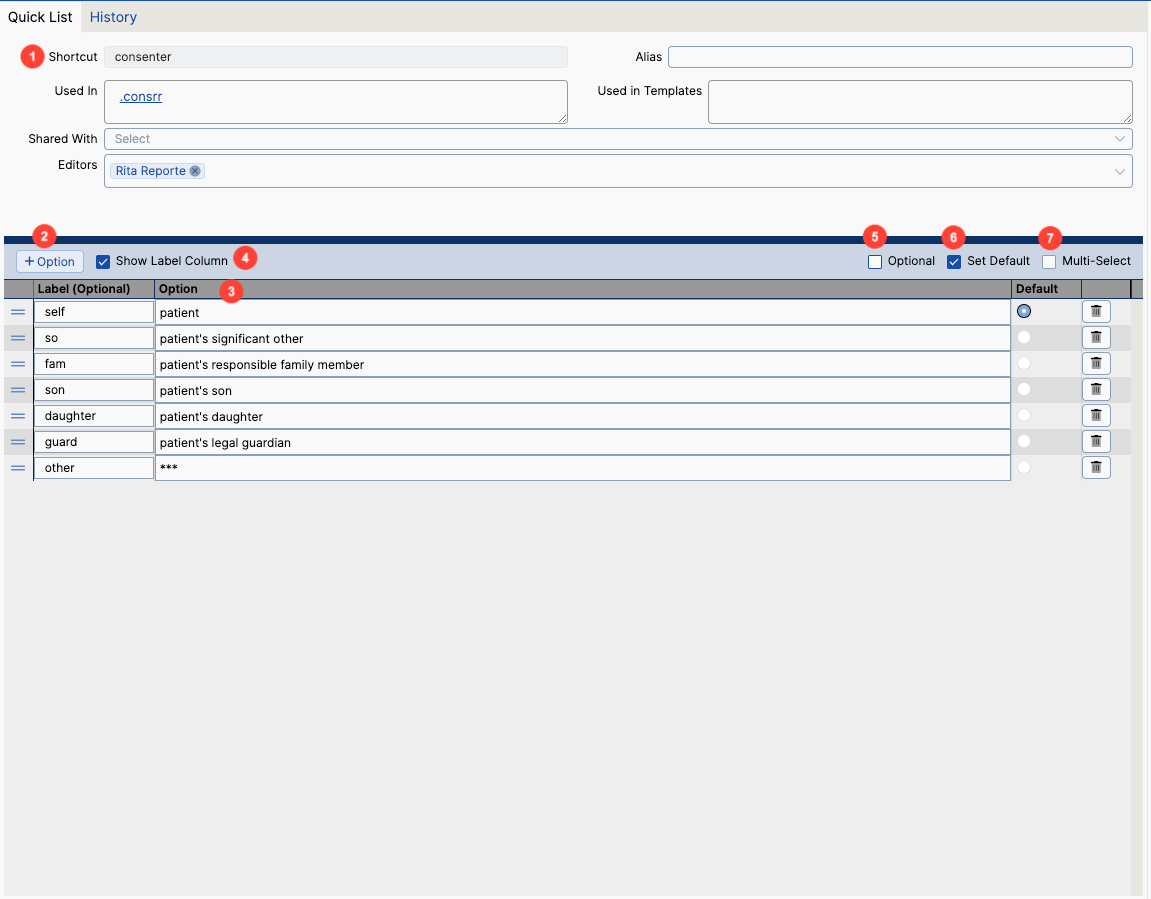
Different types of Quick Lists explained
Learn More About The Quick Library
- Sharing quick phrases and quick lists
- Using your quick library within a study
- Quick library administration