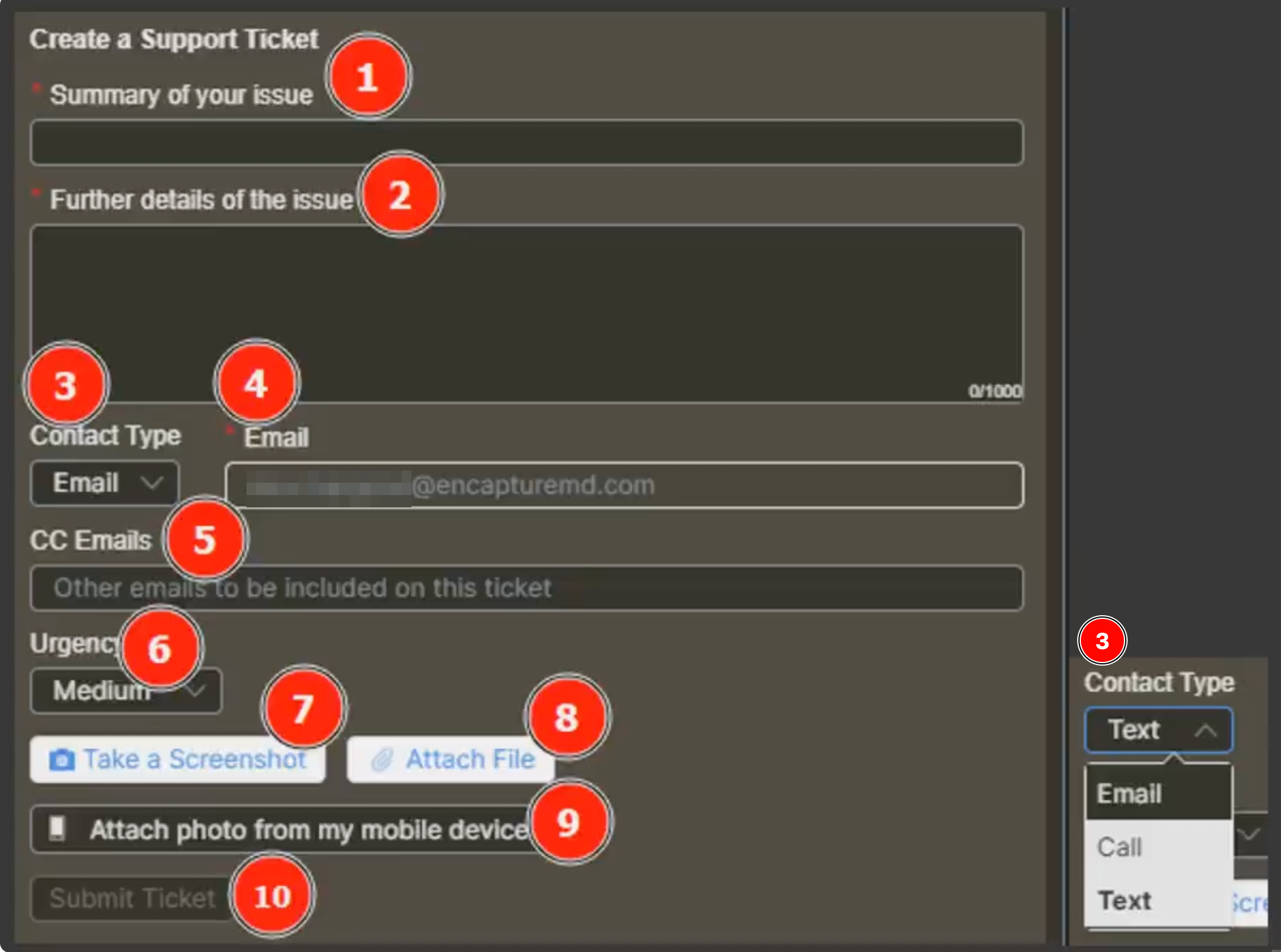
General Layout
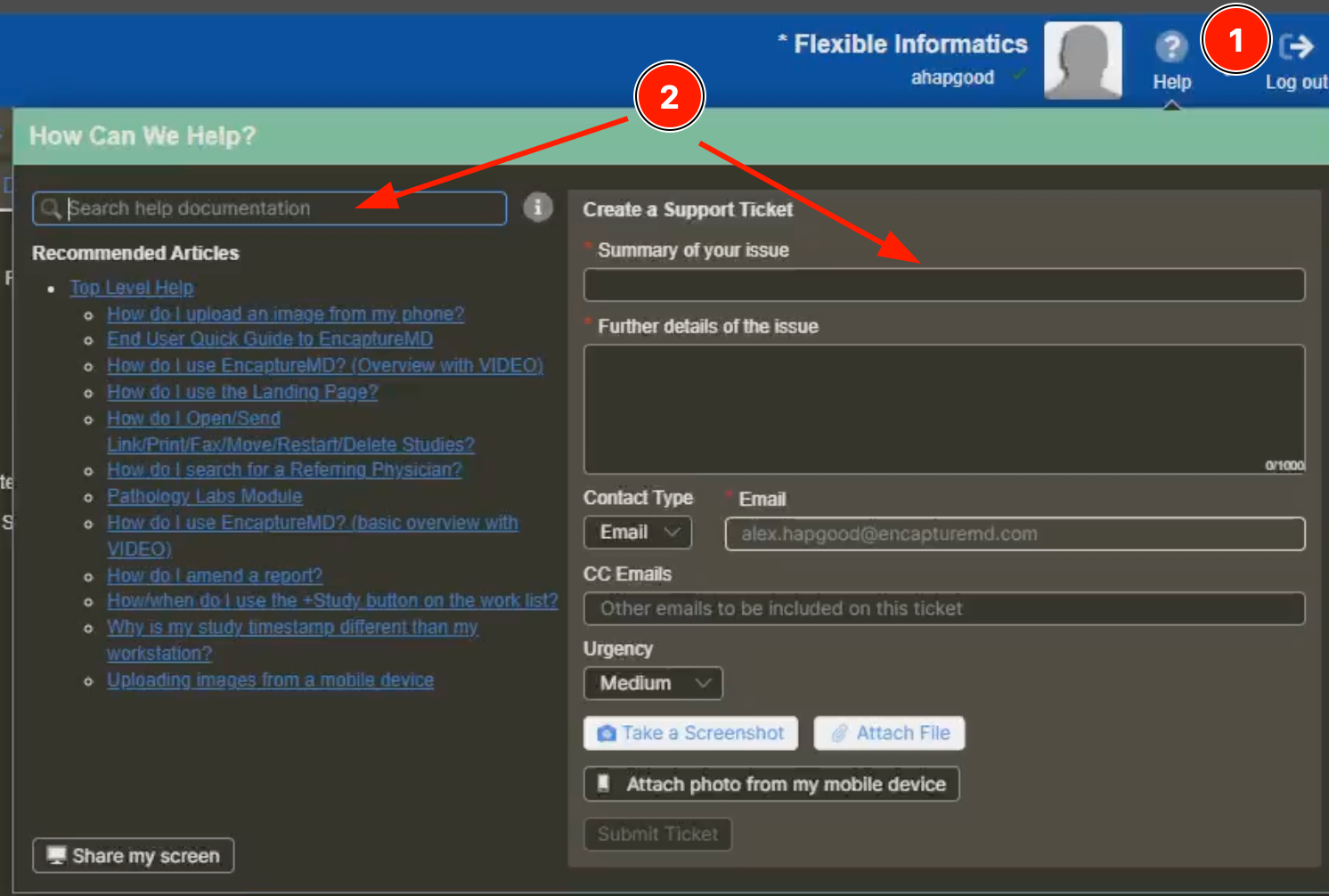
- Click the ? Help button from anywhere in the app. The help/ticket window will open
- Enter your question in either the Search field on the left or the Summary field on the right.
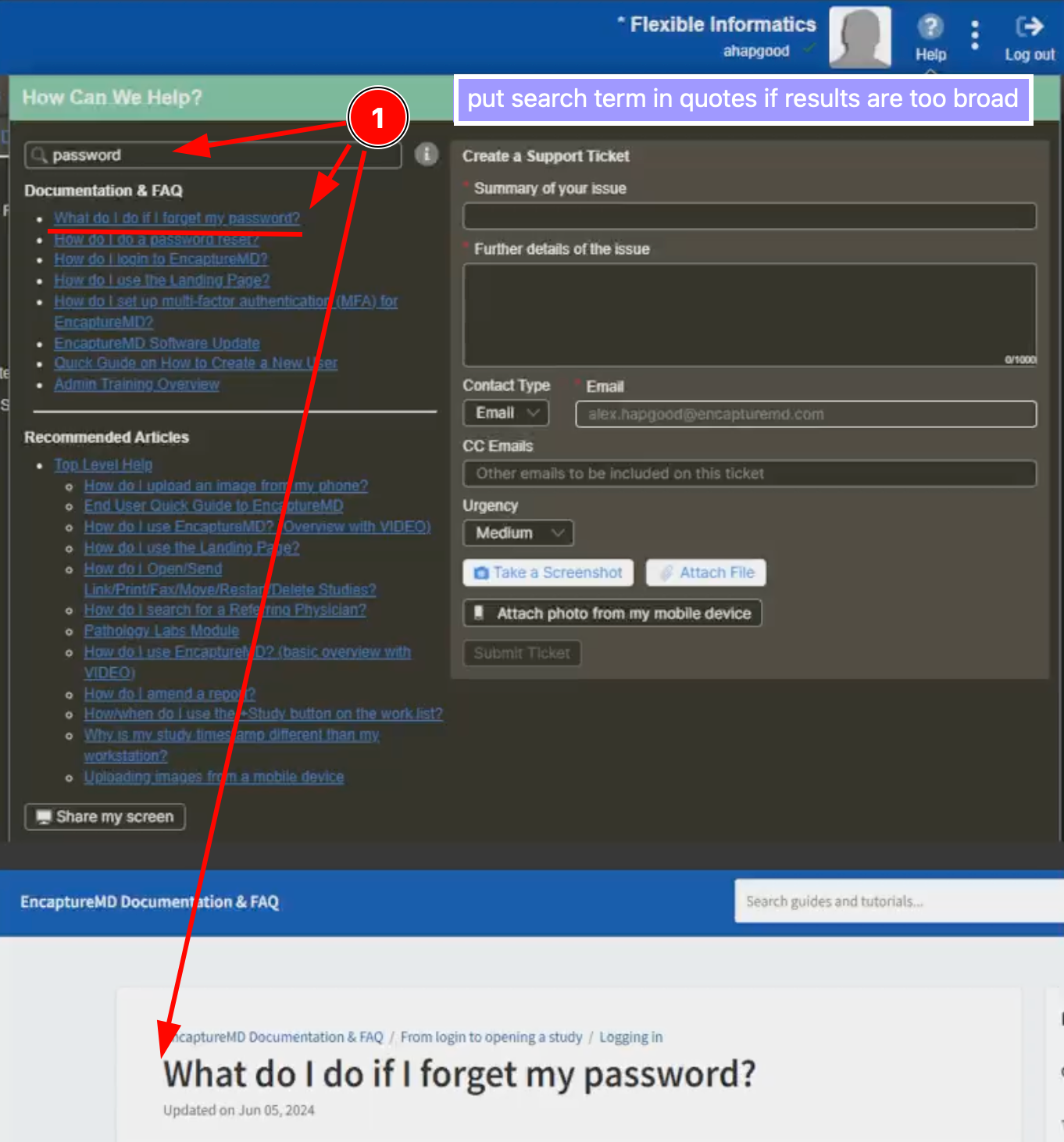
After search, the result will be shown in the left list. Click on any link and the article will load
Submit a ticket
If none of the help articles answer the question, create a support ticket. Please submit one ticket per question. Summary, Further details and email are required.
- Add a summary of your issue if you did not use that field to search your topic
- Add additional detail to help us understand and solve your concern.
- If you wish, enter a cell phone and we can call or text. Learn more about setting contact information here.
- EncaptureMD will populate your user's email address, change it if you'd like to receive ticket updates at another email address.
- Add additional email addresses here to include the support ticket communication with others. This is not required.
- Set the urgency. Set to Highest if patient care is compromised.
- Use the built-in screenshot tool in EncaptureMD to take a screenshot if it would help describe your issue.
- Alternatively, you may attach any file (image, screen shot, data file, etc) from your file system.
- Or, as another option, you may upload in image using our mobile screenshot tool. You can read about how to use this feature here.
- Click Submit Ticket.