If the Local Proxy service is running on your computer but EncaptureMD still can't connect to it, it could be caused by a new Chrome permission.
Why this happens
Starting in Chrome 145 and and Microsoft Edge 145, a new permission has been added called "Apps on device" that controls whether a website can talk to services running on your computer. The Local Proxy is one of those services, so EncaptureMD needs this
permission to be allowed.
Chrome/Edge will show this prompt when EncaptureMD tries to connect to the Local Proxy on load if you haven't already clicked Allow or Block. If you clicked Block, the connection is silently prevented from then on. If you dismissed the prompt via the X, it will reappear next time — but until you click Allow, the Local Proxy can't connect.
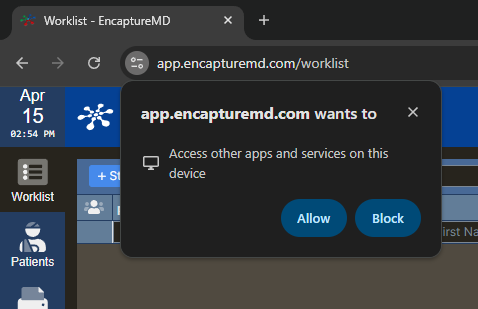
If you accidentally clicked Block, here's how to fix it
- Open EncaptureMD in Chrome/Edge.
- Click the small permission icon on the left side of the address bar (next to the URL). It may look like a tune/sliders icon or a lock.
Find the "Apps on device" permission and toggle the permission to be enabled.
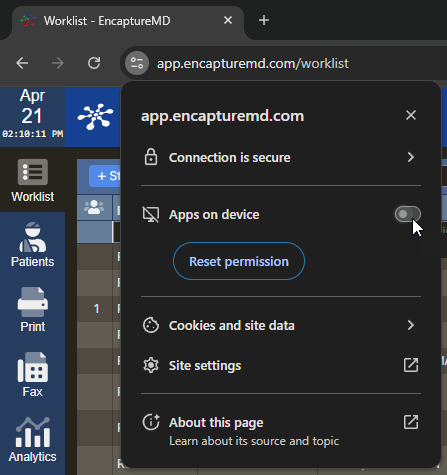
4. Reload the EncaptureMD page.
- Open Site Settings
- Open the settings window.
- Look for the Site Settings entry.
- Click Site Settings to open it in a new tab.
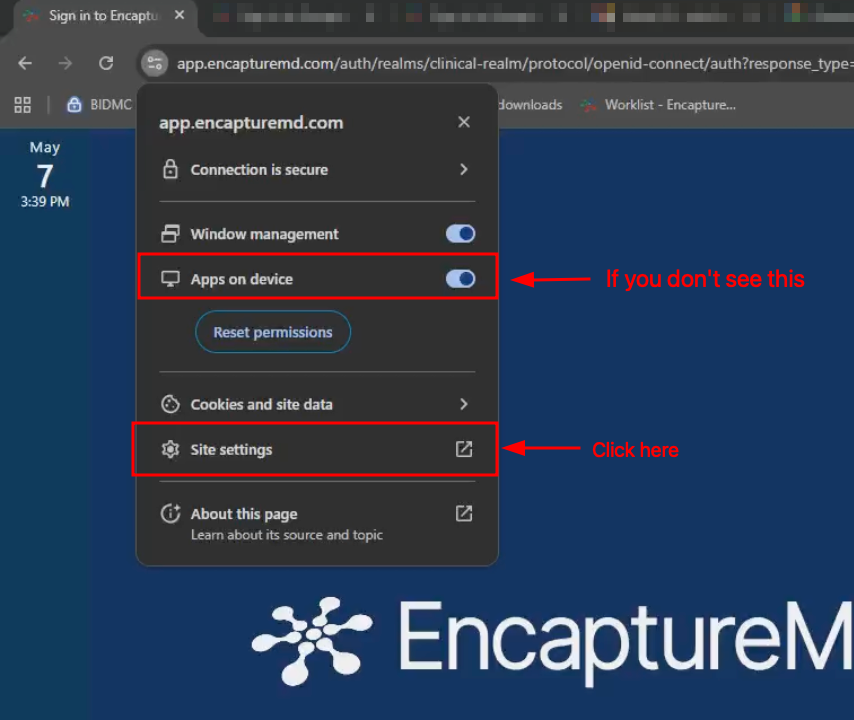
Chrome:
- Enable Apps on Device
- Scroll down in the new settings window.
- Find "Apps on Device" (usually at the bottom of the list).
- Select "Allow" from the drop-down for that option.
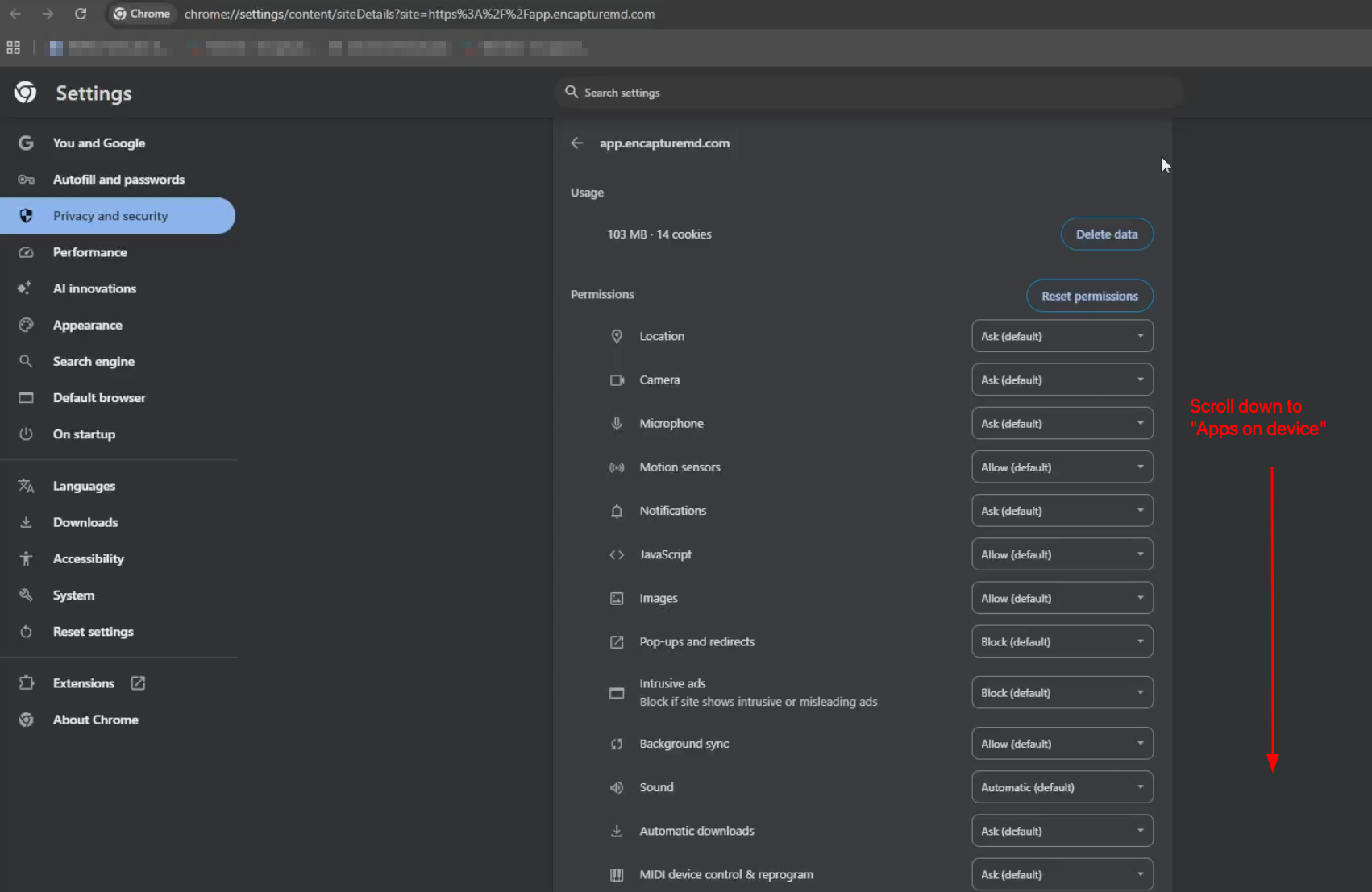

- Reload EncaptureMD page
- Either click the refresh button, or. click "Reload" in the banner that appears.

Edge:
- Enable Apps on Device
If you don't see the Apps on Device dropdown in Edge, click "permissions for this site"
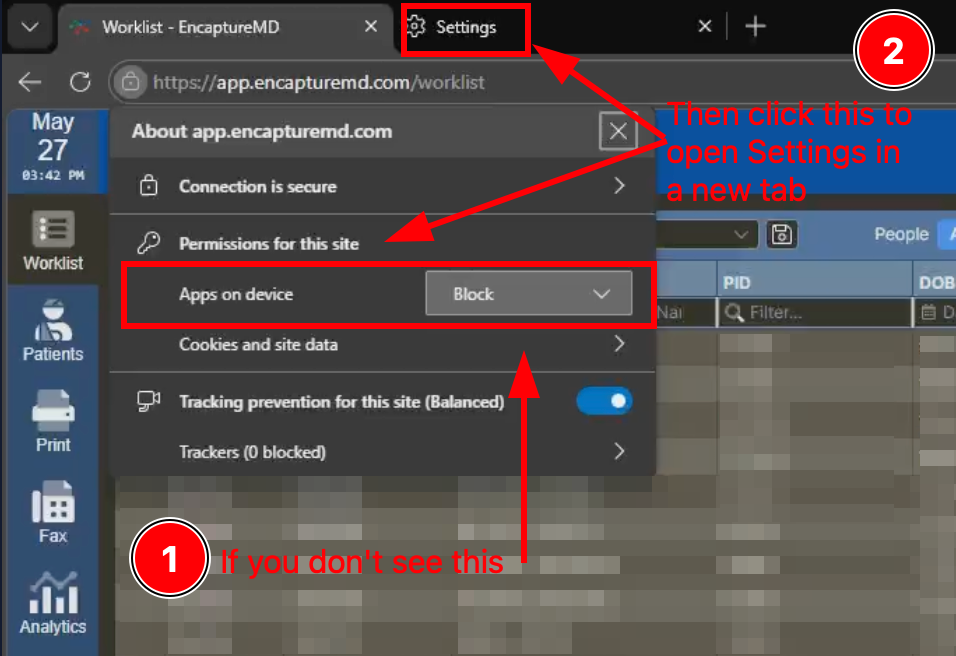
Switch to the "Settings" tab and scroll down, and select "Allow" for the "Sites can ask to connect to any device on your local network" option
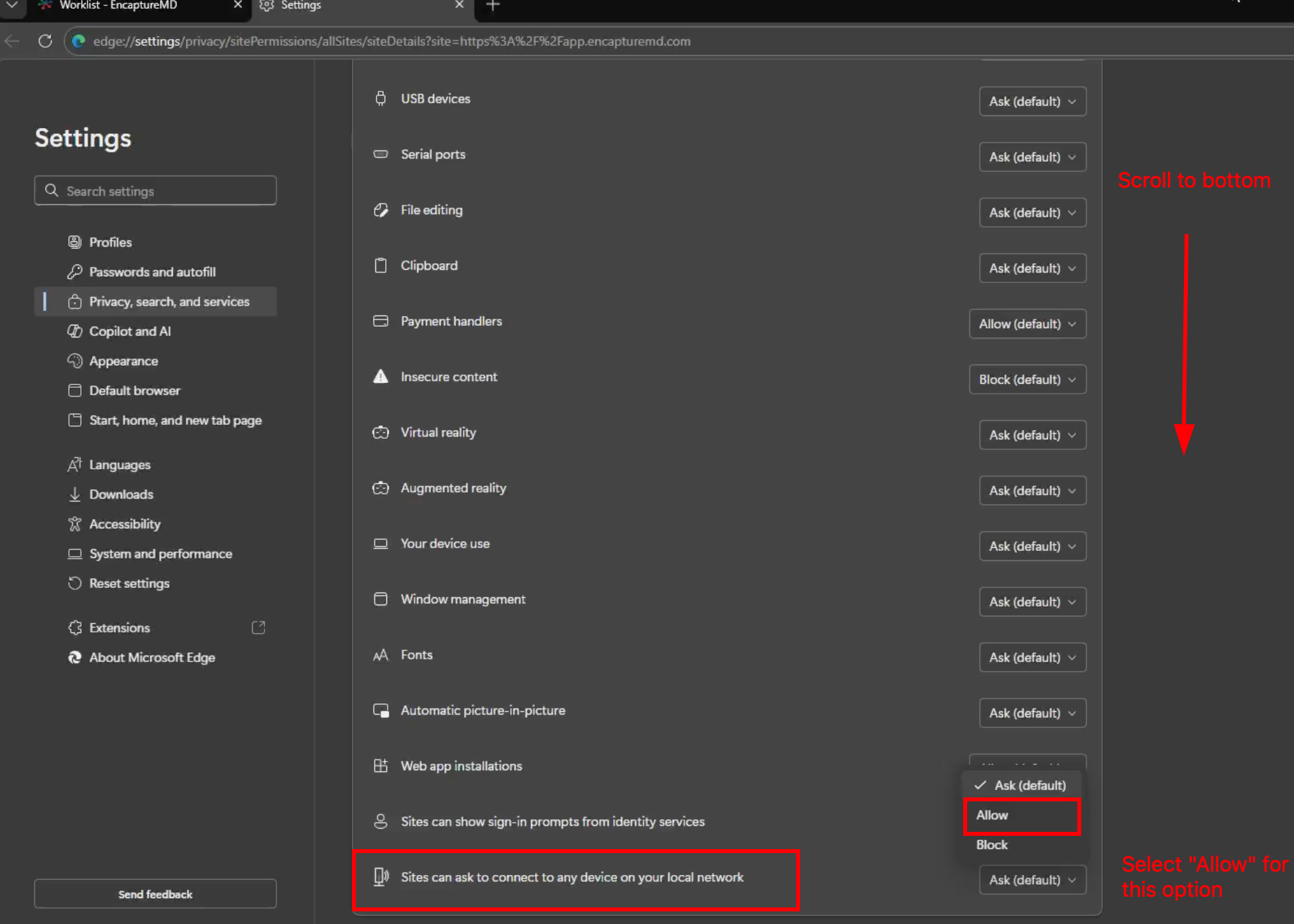
On your original EncaptureMD tab, either click the "Refresh" button in the banner that appears, or manually refresh the page

Please don't hesitate to reach out to [email protected] if you are unable to restore functionality to your integrations despite this guide!