Quick Phrases and Quick Lists
Quick Phrases and Quick Lists are productivity features designed to help clinical users enter text more efficiently. By typing shortcuts, users can quickly insert longer phrases or select from predefined lists without using a mouse. These tools streamline data entry and report creation, allowing for faster and more accurate documentation.
- Quick Phrases expand shortcuts into longer, formatted text.
- Quick Lists provide a set of predefined options to choose from.
- Both features are keyboard-driven for efficiency.
Key Terms
Understanding the following terms is essential for using Quick Phrases and Quick Lists effectively:
- Quick Phrase (Dot phrase): A shortcut that expands into a longer phrase or template, which may include formatting and embedded lists or wildcards.
- Quick List: A predefined list of options that can be selected by typing or navigating with the keyboard.
- Shortcut: A brief, memorable code (starting with a dot or an @ symbol) that triggers the insertion of a Quick Phrase or Quick List.
- Wildcard: A placeholder (e.g.,
***) within a Quick Phrase that prompts the user to enter custom text.
How Quick Phrases Work
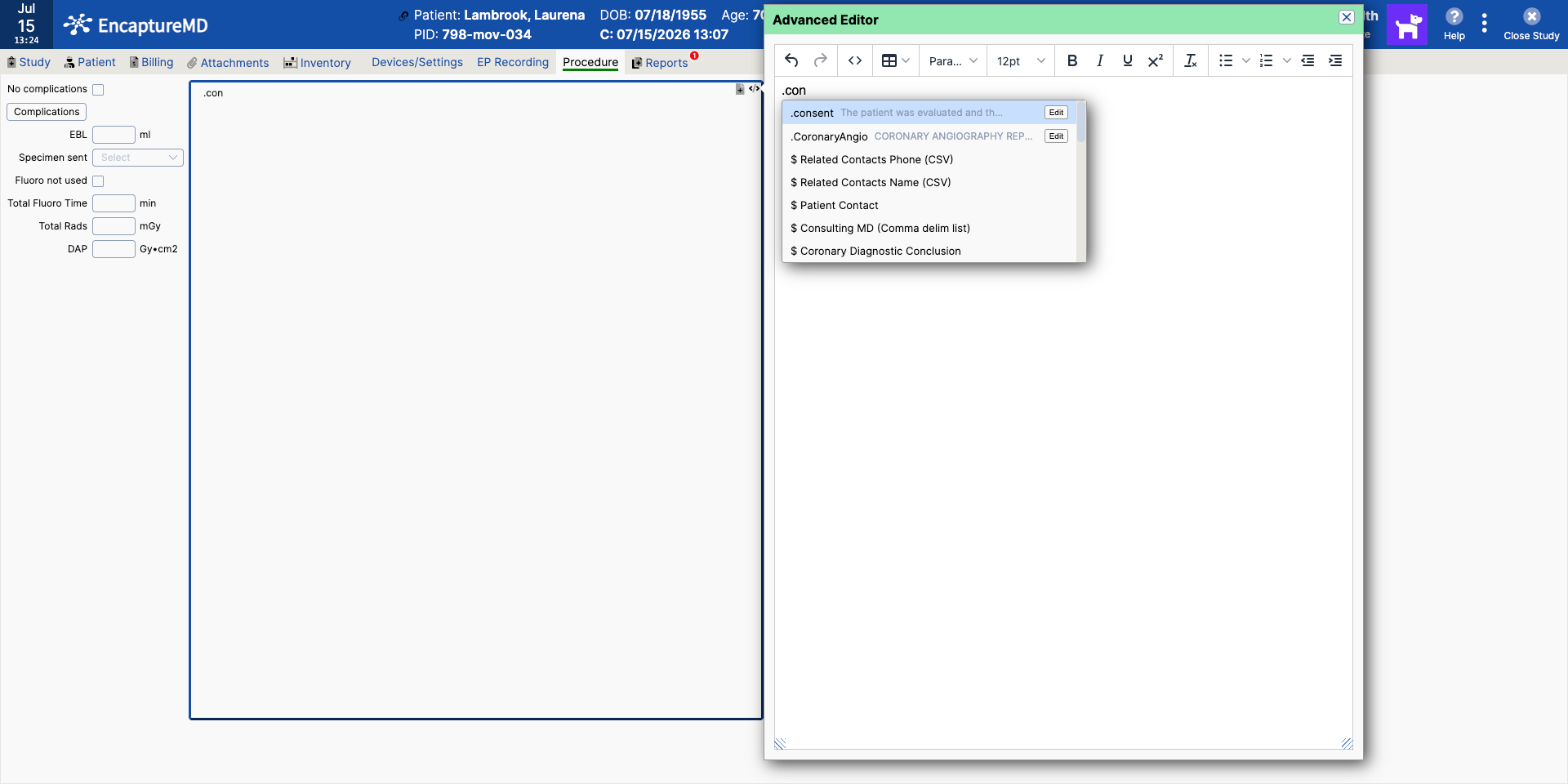
Quick Phrases are triggered by typing a shortcut that begins with a dot (e.g., .abc). These shortcuts must start with a letter, are case-insensitive, and must be at least three characters long. Users can also initiate Quick Phrases by pressing Ctrl+Space. and then typing to search for the desired phrase. Matching is fuzzy, meaning the system will suggest the closest matches based on usage frequency, not just strict prefix matching.
Quick Phrases can include formatted text (such as bold, italics, or lists), embedded Quick Lists, and wildcards. Users can navigate through unresolved Quick Lists and wildcards using the F2 key. Wildcards are highlighted and replaced as the user types, allowing for quick customization of inserted text.
- Shortcuts must be at least three characters and start with a letter.
- Quick Phrases can contain other quick phrases, quick lists, and placeholders for user input.
How Quick Lists Work
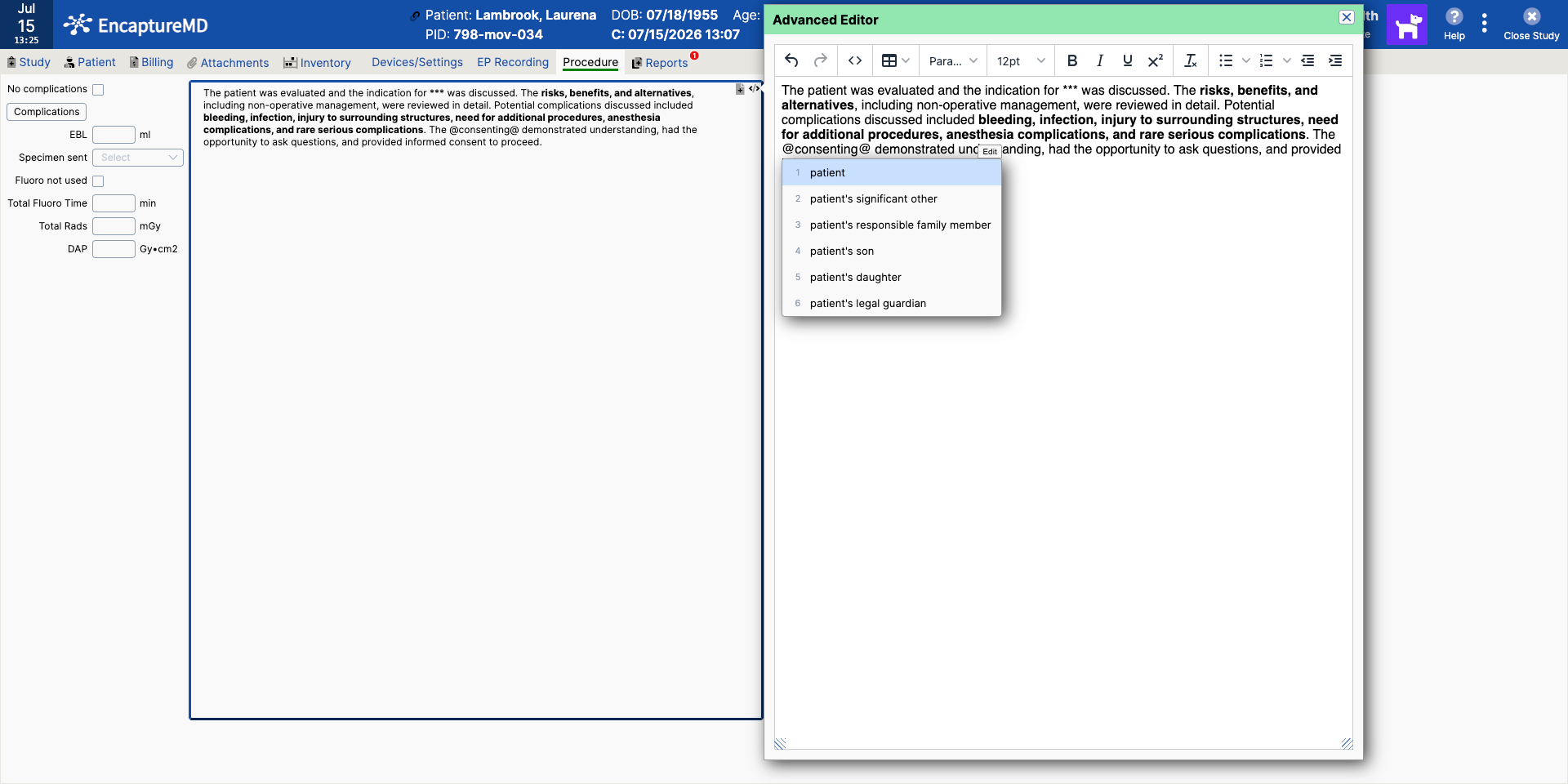
Quick lists are initiated by typing a shortcut wrapped in @ symbols (e.g., @list@) or by being embedded within a Quick Phrase. When a Quick List is triggered, users can select an option using numeric keys or by navigating with arrow keys and confirming with enter or tab. This allows for rapid selection from a set of predefined responses or options.
- Quick Lists provide a fast way to choose from predefined options.
- They can be used on their own or embedded within quick phrases.